Страница 2 - En g l i sh; camcorder. With your Digital; W ARNING; Русский; ПРЕДУПРЕЖДЕНИЕ
2 En g l i sh We l co m e ! Congratulations on your purchase of this SonyDigital Handycam camcorder. With your Digital Handycam, you can capture life’s preciousmoments with superior picture and soundquality.Your Digital Handycam is loaded with advancedfeatures, but at the same time it is very easy t...
Страница 4 - Оглавление
4 Русский Оглавление • Windows является зарегистрированнойторговой маркой, принадлежащей фирмеMicrosoft Corporation, зарегистрированной вСША и других странах. • Все названия изделий, упомянутые вданнном руководстве, могут бытьторговыми марками илизарегистрированными торговыми маркамисоответствующих ...
Страница 5 - или
5 G etting s tarted Подготовка к эксплуатации Ch e ck i n g su p p l i e da cce sso r i e s 8 1 W ireless Remot e Commander (1) (p. 173) RMT-811: DCR-TRV10ERMT-808: DCR-TRV8E 2 AC-L10A/ L10B/ L10C AC pow er adapt or (1), M ains lead (1) (p. 13) 3 NP-FM 50 bat t ery pack (1) (p. 12, 13) 4 R6 (size AA...
Страница 8 - Установка кассеты; Руководство по быстрому запуску; на кассетном
8 EJECT Установка кассеты (стр. 19) Подсоединение провода электропитания (стр. 18) При пользовании видеокамерой вне помещения используйте батарейный блок(стр. 12). Руководство по быстрому запуску Русский Руководство по быстрому запуску В данной главе приведены основные функции Вашейвидеокамеры. Подр...
Страница 9 - Запись изображения; Видоискатель
9 REW PLAY VTR OFF MEMORY CAMERA POWER VTR OFF MEMORY CAMERA POWER Запись изображения (стр. 20) Контроль воспроизводимого изображения на экране ЖКД (стр. 33) Руководство по быстрому запуску Видоискатель Если панель ЖКД закрыта, воспользуйтесьвидоискателем, приставив глаз к окуляру. ПРИМЕЧАНИЕ Не под...
Страница 10 - — Ge t t i n g st a r t e d —; Usi n g t h i s m a n u a l; Types of dif f erences; Provided; N o t e o n Ca sse t t e M e m o r y; • Searching the boundaries of recorded tape by; — Подготовка к эксплуатации —; Использование данного руководства; Типы различий; Синхронный монтаж DV; Примечание по кассетной памяти; Подробные сведения приведены на стр. 138.
10 — Ge t t i n g st a r t e d — Usi n g t h i s m a n u a l The instructions in this manual are for the twomodels listed in the table below. Before you startreading this manual and operating yourcamcorder, check the model number by lookingat the bottom of your camcorder. TheDCR-TRV10E is the model ...
Страница 11 - • Do not let your camcorder get wet. Keep your; Предостережение об авторском праве
11 G etting s tarted Подготовка к эксплуатации Usi n g t h i s m a n u a l N o t e o n TV co l o u r sy st e m s TV colour systems differ from country tocountry. To view your recordings on a TV, youneed a PAL system-based TV. Co p y r i g h t p r e ca u t i o n s Television programmes, films, video ...
Страница 12 - I n st a l l i n g t h e b a t t e r y p a ck; Lift up the viewfinder.; St e p 1 Pre p a r i n g t h e; Установка батарейного блока; Поднимите видоискатель.; Для снятия батарейного блока; Пункт 1 Подготовка; Рычаг; To r e m o v e t h e b a t t e r y p a ck; Af t er inst alling t he bat t ery pack
12 I n st a l l i n g t h e b a t t e r y p a ck Install the battery pack to use your camcorderoutdoors. (1 ) Lift up the viewfinder. (2 ) Slide the battery pack down until it clicks. St e p 1 Pre p a r i n g t h e p o w e r su p p l y 1 2 BAT T Установка батарейного блока Установите батарейный блок...
Страница 13 - St e p 1 Pr e p a r i n g t h e p o w e r; normal charge; Пункт 1 Подготовка источника; Откройте крышку гнезда DC IN и; нормальная зарядка; завершена. Для полной
13 G etting s tarted Подготовка к эксплуатации St e p 1 Pr e p a r i n g t h e p o w e r su p p l y Ch a r g i n g t h e b a t t e r y p a ck Use the battery pack after charging it for yourcamcorder.Your camcorder operates only with the“InfoLITHIUM” battery pack (M series). “InfoLITHIUM” is a tradem...
Страница 14 - “– – – min” appears in the display window.; Plug t he mains lead deeply; Примечание; – Неисправность батарейного блока.
14 Not e Prevent metallic objects from coming into contactwith the metal parts of the DC plug of the ACpower adaptor. This may cause a short-circuit,damaging the AC power adaptor. Remaining bat t ery t ime indicat or The remaining battery time indicator in thedisplay window roughly indicates the rec...
Страница 15 - Ch a r g i n g t i m e /; Re co r d i n g t i m e /; Recording w it h
15 G etting s tarted Подготовка к эксплуатации Approximate number of minutes when you use afully charged battery Numbers in parentheses “( )” indicate the timeusing a normally charged battery. * Approximate continuous recording time at25°C (77°F). The battery life will be shorter ifyou use your camc...
Страница 16 - Playing t ime; )” указывают время при
16 Approximate number of minutes when you use afully charged battery Numbers in parentheses “( )” indicate the timeusing a normally charged battery. The battery lifewill be shorter if you use your camcorder in acold environment. Pl a y i n g t i m e / Время воспроизведения DCR-TRV8E Playing t ime Pl...
Страница 17 - Af t er charging t he bat t ery pack; После зарядки батарейного блока
17 G etting s tarted Подготовка к эксплуатации Af t er charging t he bat t ery pack Disconnect the AC power adaptor from the DCIN jack on your camcorder. Not e on t he remaining bat t ery t ime indicat orduring recording The indicator may not be correct, depending onthe conditions in which you are r...
Страница 18 - Co n n e ct i n g t o t h e m a i n s; Connect the mains lead to the mains.; • The AC power adaptor can supply power even; Using a car bat t ery; на; ВНИМАНИЕ
18 Co n n e ct i n g t o t h e m a i n s When you use your camcorder for a long time,we recommend that you power it from the mainsusing the AC power adaptor. (1 ) Open the DC IN jack cover, pulling the coverout a little and rotating it. Connect the ACpower adaptor to the DC IN jack on yourcamcorder ...
Страница 19 - To e j e ct a ca sse t t e; Not es; St e p 2 I n se r t i n g a; Передвиньте переключатель; Для извлечения кассеты; Примечания; Пункт 2 Установка
19 G etting s tarted Подготовка к эксплуатации (1 ) Slide Z OPEN/EJECT in the direction of the arrow and open the lid. The cassettecompartment automatically lifts up andopens. (2 ) Push the middle portion of the back of thecassette to insert.Insert the cassette in a straight line deeply intothe cass...
Страница 20 - — Re co r d i n g – Ba si cs —; Re co rd i n g a p i ct u re; Your camcorder automatically focuses for you.; Микрофон; Видоискатель выключится автоматически.
20 5 3 40min REC 0:00:01 2 4 VTR OFF MEMORY CAMERA POWER 1 — Re co r d i n g – Ba si cs — Re co rd i n g a p i ct u re Your camcorder automatically focuses for you. (1 ) Remove the lens cap by pressing both knobson its sides and attatch the lens cap to the gripstrap. (2 ) Install the power source an...
Страница 21 - Not e
21 R ecording – B asic s Запись - Основные положения Not e Fasten the grip strap firmly. Do not touch thebuilt-in microphone during recording. Not e on Recording mode Your camcorder records and plays back in the SP(standard play) mode and in the LP (long play)mode. Select SP or LP in the MENU settin...
Страница 22 - Xz; A f t e r r e co r d i n g; ярче; Это не повлияет на записанное изображение.; После записи
22 180 ° 90 ° LCD BRIGHT Re co r d i n g a p i ct u r e A d j u st i n g t h e LCD scr e e n To adjust the brightness of the LCD screen, presseither of the two buttons on LCD BRIGHT.The LCD panel moves about 90 degrees to theviewfinder side and about 180 degrees to the lensside.If you turn the LCD p...
Страница 24 - При съемке объекта с близкого положения; Usi n g t h e zo o m f e a t u r e; Zoom greater than 10; W hen you shoot close t o a subject; • Digital zoom starts to function when zoom
24 Использование функции наездавидеокамеры Передвиньте рычаг приводноговариообъектива слегка для относительномедленного наезда видеокамеры.Передвиньте его сильнее для ускоренногонаезда видеокамеры.Использование функции наезда видеокамерыв небольшом количестве обеспечиваетнаилучшие результаты.Сторона...
Страница 25 - STA RT/STOP M OD E se t t i n g; • You cannot use the fader function in the 5SEC; Установка START/STOP MODE; ANTI GROUND SHOOTING; zzzzz
25 R ecording – B asic s Запись - Основные положения STA RT/STOP M OD E se t t i n g : Recording starts when you press START/STOP, and stops when you press it again(factory setting). ANTI GROUND SHOOTING : Your camcorder records only while youpress START/STOP. Use this mode toavoid recording unneces...
Страница 26 - The indicators are not recorded on tape.; Индикаторы не записываются на ленту.
26 0:00:01 45min 40 min REC I n d i ca t o r s d i sp l a y e d i n t h er e co r d i n g m o d e The indicators are not recorded on tape. Time code The time code indicates the recording orplayback time, “0:00:00” (hours : minutes :seconds) in CAMERA mode and “0:00:00:00”(hours : minutes : seconds :...
Страница 27 - indicator appears in the viewfinder or on; BACK LIGHT; Функция задней подсветки будет отменена.
27 R ecording – B asic s Запись - Основные положения Sh o o t i n g b a ck l i t su b j e ct s( BA CK LI GHT) When you shoot a subject with the light sourcebehind the subject or a subject with a lightbackground, use the backlight function. Press BACK LIGHT in the recording or standbymode.The . indic...
Страница 28 - and “NIGHTSHOT” indicators flash on the; Usi n g t h e N i g h t Sh o t Li g h t; Night Shot Light emit t er/; и “NIGHTSHOT” начнут; Использование режима +SLOW SHTR
28 Sh o o t i n g i n t h e d a r k( N i g h t Sh o t ) The NightShot function enables you to shoot asubject in a dark place. For example, you cansatisfactorily record the environment ofnocturnal animals for observation when you usethis function. (1 ) While your camcorder is in the standby mode,slid...
Страница 29 - • Do not use the NightShot function in bright; Indicat or
29 R ecording – B asic s Запись - Основные положения Re co r d i n g a p i ct u r e Not es • Do not use the NightShot function in bright places (ex. outdoors in the daytime). This maycause your camcorder to malfunction. • When you keep NIGHTSHOT set to ON in normal recording, the picture may be reco...
Страница 30 - Press SELFTIMER in the standby mode. The; To ca n ce l se l f -t i m e r r e co r d i n g; Press SELFTIMER so that the; Нажмите кнопку SELFTIMER в режиме; положение OFF или VTR.
30 Re co r d i n g a p i ct u r e Se l f -t i m e r r e co r d i n g You can make a recording with the self-timer.This mode is useful when you want to recordyourself. (1 ) Press SELFTIMER in the standby mode. The (self-timer) indicator appears on the LCD screen or in the viewfinder. (2 ) Press START...
Страница 31 - Ch e ck i n g t h e re co rd i n g; EN D SEA RCH; You can search for the next recording start point.; Проверка записи; END SEARCH
31 R ecording – B asic s Запись - Основные положения Ch e ck i n g t h e re co rd i n g – EN D SEA RCH / ED I TSEA RCH / Re cRe v i e w You can use these buttons to check the recordedpicture or shoot so that the transition betweenthe last recorded scene and the next scene yourecord is smooth. EN D S...
Страница 32 - Re c Re v i e w; You can check the last recorded section.; End search f unct ion; Просмотр записи; Функция поиска конца
32 Ch e ck i n g t h e r e co r d i n g– EN D SEA RCH / ED I TSEA RCH / Re cRe v i e w Re c Re v i e w You can check the last recorded section. Press the – side of EDITSEARCH momentarily inthe standby mode.The last few seconds of the recorded section areplayed back. You can monitor the sound from th...
Страница 33 - — Pl a y b a ck – Ba si cs —; Pl a y i n g b a ck a t a p e; To st o p p l a y b a ck; W hen monit oring on t he LCD screen; PLAY; — Воспроизведение - Основные положения —; Воспроизведение ленты; Для остановки воспроизведения; Во время контроля на экране ЖКД
33 P laybac k – B asic s Воспроизведение - Основные положения — Pl a y b a ck – Ba si cs — Pl a y i n g b a ck a t a p e You can monitor the playback picture on theLCD screen. If you close the LCD panel, you canmonitor the playback picture in the viewfinder.You can control playback using the RemoteC...
Страница 34 - Usi n g t h e d a t a co d e f u n ct i o n; . Data code is not displayed during; DISPLAY; Использование функции кода даты; разные установки (устойчивая; Not t o display various set t ings; no indicator
34 4 7 199912:05:56 50 AWBF1.7 9dB AUTO Pl a y i n g b a ck a t a p e To d i sp l a y t h e scr e e n i n d i ca t o r s– D i sp l a y f u n ct i o n Press DISPLAY on your camcorder or theRemote Commander supplied with yourcamcorder.The indicators appear on the LCD screen.To make the indicators disa...
Страница 35 - • A blank section of the tape is being played; Dat a code
35 P laybac k – B asic s Воспроизведение - Основные положения Pl a y i n g b a ck a t a p e Not e The pictures taken on the Memory Stick are notrecorded with various settings. Recording dat a Recording data is your camcorder’s informationwhen you have recorded. In the recording mode,the recording da...
Страница 36 - V a r i o u s p l a y b a ck m o d e s; To a d v a n ce t h e t a p e; Для ускоренной перемотки ленты назад
36 V a r i o u s p l a y b a ck m o d e s To operate control buttons, set the POWERswitch to VTR. To v i e w a st i l l p i ct u r e ( p l a y b a ckp a u se ) Press X during playback. To resume playback, press X or N . To a d v a n ce t h e t a p e Press M in the stop mode. To resume normal playbac...
Страница 37 - To v i e w t h e p i ct u r e a t d o u b l e sp e e d; End Search; Поиск конца
37 P laybac k – B asic s Воспроизведение - Основные положения Pl a y i n g b a ck a t a p e To v i e w t h e p i ct u r e a t d o u b l e sp e e d Press × 2 on the Remote Commander during playback. For double speed playback in thereverse direction, press , then press × 2 on the Remote Commander. To ...
Страница 39 - If your TV or VCR has an S video jack; To ca n ce l t h e l a se r l i n k f u n ct i o n; V i e w i n g t h e r e co r d i n g o n TV; LASER LINK
39 P laybac k – B asic s Воспроизведение - Основные положения If your TV or VCR has an S video jack Connect using an S video cable (not supplied) toobtain high-quality pictures. With thisconnection, you do not need to connect theyellow (video) plug of the A/V connecting cable.Connect the S video cab...
Страница 40 - If you t urn t he pow er of f; – Включите лазерный канал передачи
40 V i e w i n g t h e r e co r d i n g o n TV If you t urn t he pow er of f Laser link turns off automatically. If you use a Sony TV • You can turn on the TV automatically when you press LASER LINK or N . To do so, set AUTO TV ON to ON in the MENU settings andturn the TV’s main switch on, then do e...
Страница 41 - — A d v a n ce d Re co r d i n g Op e r a t i o n s —; Ph o t o re co r d i n g; Set the POWER switch to CAMERA.; — Усовершенствованные операции съемки —; Фотосъемка
41 Advanc ed R ecording Operat ions Усовершенствованные операции съемки — A d v a n ce d Re co r d i n g Op e r a t i o n s — Ph o t o re co r d i n g You can record a still picture like a photograph.This mode is useful when you want to record apicture such as a photograph or when you print apicture...
Страница 42 - Ph o t o r e co r d i n g; используется функция фейдера.
42 Not es • During photo recording, you cannot change the mode or setting. • During photo recording, you cannot turn your camcorder off or press the PHOTO button. • When recording a still picture, do not shake your camcorder. The picture may fluctuate. • The photo recording function does not work: –...
Страница 43 - S VIDEO
43 Advanc ed R ecording Operat ions Усовершенствованные операции съемки Ph o t o r e co r d i n g Pr i n t i n g t h e st i l l p i ct u r e You can print a still picture by using the videoprinter (not supplied). Connect the video printerusing the A/V connecting cable supplied withyour camcorder.Con...
Страница 44 - To ca n ce l t h e w i d e m o d e; Set 16:9WIDE to OFF in the MENU settings.; Usi n g t h e w i d e m o d e; M ENU; или на
44 You can record a 16:9 wide picture to watch onthe 16:9 wide-screen TV (16:9WIDE).Black bands appear on the screen duringrecording in 16:9WIDE mode [a ]. The picture during playing back on a normal TV [b ] or a wide -screen TV [c] are compressed in the widthwise direction. If you set the screen mo...
Страница 45 - In t he w ide mode
45 Advanc ed R ecording Operat ions Усовершенствованные операции съемки Usi n g t h e w i d e m o d e In t he w ide mode You cannot select the old movie function withDIGITAL EFFECT and the bounce function withFADER. During recording You cannot select or cancel the wide mode.When you cancel the wide ...
Страница 46 - You cannot use this function when D ZOOM is; MONOTONE
46 You can fade in or out to give your recording aprofessional appearance. Usi n g t h e f a d e rf u n ct i o n FADER M .FADER (mosaic) M ONOTONE When fading in, the picture gradually changesfrom black-and-white to colour.When fading out the picture gradually changesfrom colour to black-and-white. ...
Страница 47 - Usi n g t h e f a d e r f u n ct i o n; To ca n ce l t h e f a d e r f u n ct i o n; Использование функции фейдера; При введении изображения; BOUNCE; Для отмены функции фейдера
47 Advanc ed R ecording Operat ions Усовершенствованные операции съемки Usi n g t h e f a d e r f u n ct i o n (1 ) W hen f ading in [ a] In the standby mode, press FADER until thedesired fader indicator flashes. W hen f ading out [b ] In the recording mode, press FADER until thedesired fader indica...
Страница 48 - You cannot use the fader function.; Not e on t he bounce f unct ion; Usi n g t h e Fa d e r f u n ct i o n; ON в установках MENU
48 Not e You cannot use the following functions whileusing the fader function. Also, you cannot usethe fader function while using the followingfunctions.– Digital effect– Low lux mode of PROGRAM AE (Overlap function only) – NightShot +Slow shutter– Photo recording W hen t he OVERLAP indicat or appea...
Страница 49 - : The colour and brightness of the; SEPIA; The picture is sepia.
49 Advanc ed R ecording Operat ions Усовершенствованные операции съемки You can digitally process images to obtain specialeffects like those in films or on the TV. NEG. ART [a] : The colour and brightness of the picture is reversed. SEPIA : The picture is sepia. B&W : The picture is monochrome(b...
Страница 50 - Set P EFFECT to OFF in the MENU settings.; W hile using t he pict ure ef f ect f unct ion
50 Usi n g sp e ci a l e f f e ct s– Pi ct u r e e f f e ct Select the desired picture effect mode in theMENU settings (p. 93). To t u r n t h e p i ct u r e e f f e ct f u n ct i o no f f Set P EFFECT to OFF in the MENU settings. D u r i n g p l a y b a ck , y o u ca n p r o ce ss asce n e u si n g...
Страница 51 - STILL
51 Advanc ed R ecording Operat ions Усовершенствованные операции съемки Usi n g sp e ci a l e f f e ct s– D i g i t a l e f f e ct You can add special effects to recorded picturesusing the various digital functions. The sound isrecorded normally. STILL You can record a still picture so that it issup...
Страница 52 - It ems t o adjust; DIGITAL EFFECT; Пункты для регулировки
52 Usi n g sp e ci a l e f f e ct s– D i g i t a l e f f e ct (1 ) While your camcorder is in the standby orrecording mode, press DIGITAL EFFECT. Thedigital effect indicator appears. (2 ) Turn the SEL/PUSH EXEC dial to select thedesired digital effect mode.The indicator changes as follows:STILL y FL...
Страница 53 - To ca n ce l t h e d i g i t a l e f f e ct; Для отмены цифрового эффекта
53 Advanc ed R ecording Operat ions Усовершенствованные операции съемки Usi n g sp e ci a l e f f e ct s– D i g i t a l e f f e ct To ca n ce l t h e d i g i t a l e f f e ct Press DIGITAL EFFECT. The digital effectindicator disappears. Not es • The following functions do not work during digital eff...
Страница 54 - AUTO (автоматический режим баланса; Примеры условий; телевизионном освещении.
54 A d j u st i n g t h e w h i t eb a l a n ce m a n u a l l y You can manually adjust and set the whitebalance. This adjustment makes white subjectslook white and allows more natural colourbalance. Normally white balance is automaticallyadjusted. In the standby or recording mode, select thedesired...
Страница 55 - W hen you record under f luorescent light ing; • When you move from indoors to outdoors, or
55 Advanc ed R ecording Operat ions Усовершенствованные операции съемки If t he pict ure is being t aken in a st udio lit byTV light ing We recommend you to record in the indoormode. W hen you record under f luorescent light ing Use the automatic white balance or hold mode.Your camcorder may not adj...
Страница 57 - Usi n g t h e PROGRA M A E f u n ct i o n; Нажмите кнопку PROGRAM AE.
57 Advanc ed R ecording Operat ions Усовершенствованные операции съемки Usi n g t h e PROGRA M A E f u n ct i o n (1 ) Press PROGRAM AE in the standby mode.The PROGRAM AE indicator appears. (2 ) Turn the SEL/PUSH EXEC dial to select thedesired PROGRAM AE mode.The indicator changes as follows: y y y ...
Страница 58 - Вы можете выбрать экспозицию.
58 Not es • In the spotlight, sports lesson and beach & ski modes, you cannot take close-ups. This isbecause your camcorder is set to focus only onsubjects in the middle to far distance. • In the sunset & moon and landscape modes, your camcorder is set to focus only on distantsubjects. • The...
Страница 59 - faithfully; Объект на фоне задней подсветки
59 Advanc ed R ecording Operat ions Усовершенствованные операции съемки You can manually adjust and set the exposure.Adjust the exposure manually in the followingcases:• The subject is backlit• Bright subject and dark background• To record dark pictures (e.g. night scenes) faithfully (1 ) Press EXPO...
Страница 60 - Fo cu si n g m a n u a l l y; FOCUS; Фокусировка вручную; Режим автоматической фокусировки
60 Fo cu si n g m a n u a l l y You can gain better results by manually adjustingthe focus in the following cases:•The autofocus mode is not effective when shooting– subjects through glass coated with water droplets – horizontal stripes– subjects with little contrast with backgrounds such as walls a...
Страница 61 - To r e t u r n t o t h e a u t o f o cu s m o d e; indicator appears. When; W hen you shoot close t o t he subject; Для съемки удаленных объектов; Следующие индикаторы могут появиться
61 Advanc ed R ecording Operat ions Усовершенствованные операции съемки To r e t u r n t o t h e a u t o f o cu s m o d e Set FOCUS to AUTO. To r e co r d d i st a n t su b j e ct s When you press FOCUS down to INFINITY. Thelens focuses on and indicator appears. When you release FOCUS, your camcorde...
Страница 62 - — A d v a n ce d Pl a y b a ck Op e r a t i o n s —; To ca n ce l t h e p i ct u r e e f f e ct f u n ct i o n; • You cannot process externally input scenes
62 — A d v a n ce d Pl a y b a ck Op e r a t i o n s — Pl a y i n g b a ck a t a p ew i t h p i ct u re e f f e ct s During playback, you can process a scene usingthe picture effect functions: NEG.ART,SOLARIZE, SEPIA and B&W. During playback, select the desired picture effectmode in the MENU set...
Страница 63 - To ca n ce l t h e d i g i t a l e f f e ct f u n ct i o n; Press DIGITAL EFFECT.
63 Advanc ed P laybac k Operat ions Усовершенствованные операции воспроизведения 2 3 1 STILL STILL DIGITAL EFFECT During playback, you can process a scene usingthe digital effect functions: STILL, FLASH, LUMI.and TRAIL. (1 ) During playback, press DIGITAL EFFECTand turn the SEL/PUSH EXEC dial until ...
Страница 67 - To st o p se a r ch i n g; Se a r ch i n g a r e co r d i n g b y d a t e; Для остановки поиска; Поиск записи по дате
67 Advanc ed P laybac k Operat ions Усовершенствованные операции воспроизведения To st o p se a r ch i n g Press x . Se a r ch i n g f o r t h e d a t e w i t h o u tu si n g ca sse t t e m e m o r y (1 ) Set the POWER switch to VTR. (2 ) Set CM SEARCH in to OFF in the MENU settings (p. 93). (3 ) Pr...
Страница 68 - Tit le search; If you use a t ape w it hout casset t e memory; поиск титра; Для наоложения титра
68 Se a rch i n g t h e b o u n d a r i e so f re co rd e d t a p e b y t i t l e– Ti t l e se a rch If you use a tape with cassette memory,you can search for the boundaries ofrecorded tape by title ( Tit le search ). Use the Remote Commander for thisoperation. (1 ) Set the POWER switch to VTR. (2 )...
Страница 70 - Sca n n i n g p h o t o; To st o p sca n n i n g; Сканирование фото; Для остановки сканирования
70 Se a r ch i n g f o r a p h o t o w i t h o u tu si n g ca sse t t e m e m o r y (1 ) Set the POWER switch to VTR. (2 ) Set CM SEARCH in to OFF in the MENU settings (p. 93). (3 ) Press SEARCH MODE repeatedly, until thephoto search indicator appears. (4 ) Press . or > to select the photo for pl...
Страница 71 - Usi n g t h e A /V co n n e ct i n g ca b l e; Set the POWER switch to VTR.; — Ed i t i n g —; D u b b i n g a t a p e; VIDEO; Если Вы закончили перезапись ленты; — Монтаж —; Перезапись ленты
71 E diting Монтаж Usi n g t h e A /V co n n e ct i n g ca b l e Connect your camcorder to the VCR using theA/V connecting cable supplied with yourcamcorder.Set the input selector on the VCR to LINE, ifavailable. ( 1 ) Insert a blank tape (or a tape you want torecord over) into the VCR, and insert t...
Страница 72 - mini DV or; If your VCR is a monaural t ype; или DV; Если Ваш КВМ монофонического типа
72 D u b b i n g a t a p e If you have displayed t he screen indicat ors ont he TV Make the indicators disappear by pressingSEARCH MODE or DATA CODE on the RemoteCommander or DISPLAY so that they will not besuperimposed on the edited tape. You can edit on VCRs t hat support t hef ollow ing syst ems ...
Страница 73 - During digit al edit t ing; You cannot use DIGITAL EFFECT button functions.; You can also use your camcorder as a recorder
73 E diting Монтаж S VIDEO LANC DV D u b b i n g a t a p e Usi n g t h e i .LI N K ca b l e ( D V co n n e ct i n gca b l e ) Simply connect the VMC-IL4435/2DV/4DVi.LINK cable (DV connecting cable) (notsupplied) to DV IN/OUT and to DV IN/OUTof the DV products. With digital-to-digitalconnection, vide...
Страница 75 - • If you use other than Sony equipment with the; Errors in duplicat ing; OUT is less than five seconds.; On a blank port ion of t he t ape; You cannot set DV EDITING IN or OUT.; M ARK; Если Вы используете аппаратуру с гнездом; Ошибки при перезаписи
75 E diting Монтаж Ed i t i n g p a r t i a l l y o n a D V t a p e– D V sy n ch r o -e d i t i n g ( D CR-TRV 1 0 E o n l y ) Not es • If you use other than Sony equipment with the DV jack, you cannot perform DV synchro- editing. • If a tape has a blank portion between recorded portions, DV synchro...
Страница 79 - I n se r t i n g a sce n e f r o m a V CR; To ch a n g e t h e i n se r t e n d p o i n t; Введение эпизода с КВМ; Для изменения места конца вставки
79 E diting Монтаж I n se r t i n g a sce n e f r o m a V CR (1 ) Set the POWER switch to VTR. (2 ) On the VCR, locate just before the insert startpoint [a ] , then press X to set the VCR to the playback pause mode. (3 ) On your camcorder, locate the insert endpoint [c] by pressing m or M . Then pre...
Страница 80 - Skip step 3 and 4. Press; Пропустите пункт 3 и 4. Нажмите кнопку
80 Not e The picture and sound recorded on the sectionbetween the insert start and end points will beerased when you insert the new scene. W hen t he insert ed pict ure is played back The picture and sound may be distorted at theend of the inserted section. This is not amalfunction. To insert a scen...
Страница 81 - A u d i o d u b b i n g; Передача сигнала
81 E diting Монтаж You can record an audio sound to add to theoriginal sound on a tape by connecting audioequipment or a microphone. If you connect theaudio equipment, you can add sound to yourrecorded tape by specifying starting and endingpoints. The original sound will not be erased.Use the Remote...
Страница 82 - No connection is necessary.; Аудиоперезапись; Никакие подсоединения не требуются.; AUDIO L
82 A u d i o d u b b i n g D u b b i n g w i t h t h e A UD I O/V I D EOj a ck Not e The picture is not output from the AUDIO/VIDEO jack. Check the recorded picture on theLCD screen or in the viewfinder, as well as checkthe recorded sound by using a speaker orheadphones. D u b b i n g w i t h t h e ...
Страница 83 - To p l a y b a ck t h e so u n d; AUDIO DUB; . Затем нажмите кнопку; Для воспроизведения звука
83 E diting Монтаж A d d i n g a n a u d i o so u n d o n ar e co r d e d t a p e (1 ) Insert your recorded tape into yourcamcorder. (2 ) Set the POWER switch of your camcorder toVTR. (3 ) Locate the recording start point by pressing N . Then press X at the point where you want to start recording to...
Страница 84 - Вы не можете добавить звук через гнездо; Если Вы сделали все подсоединения; Встроенный микрофон
84 A u d i o d u b b i n g Not es • New sound cannot be recorded on a tape already recorded in the 16-bit mode (32 kHz,44.1 kHz or 48 kHz) (p. 97). • When an external microphone is not connected, the recording will be made through the built-inmicrophone of your camcorder. • New sound cannot be recor...
Страница 85 - Su p e r i m p o si n g a t i t l e; Press TITLE to display the title menu.; VACATION; Наложение титра; Повторяйте пункты
85 E diting Монтаж Su p e r i m p o si n g a t i t l e If you use a tape with cassette memory,you can superimpose the title whilerecording or after recording. When youplay back the tape, the title is displayedfor five seconds from the point where yousuperimposed it. You can select one of eight prese...
Страница 87 - To use t he cust om t it le; Для использования собственного титра
87 E diting Монтаж Su p e r i m p o si n g a t i t l e If you use a casset t e set t o prevent accident alerasure You cannot superimpose or erase the title. Slidethe write-protect tab so that the red portion is notvisible. To use t he cust om t it le If you want to use the custom title, select in st...
Страница 88 - Er a si n g a t i t l e; To e r a se t h e m e n u d i sp l a y; MENU; Стирание титра; Для стирания индикации меню
88 Er a si n g a t i t l e (1 ) Set the POWER switch to VTR. (2 ) Press MENU to display the menu. (3 ) Turn the SEL/PUSH EXEC dial to select , then press the dial. (4 ) Turn the SEL/PUSH EXEC dial to selectTITLEERASE, then press the dial.Title erase display appears. (5 ) Turn the SEL/PUSH EXEC dial ...
Страница 89 - Press TITLE in the standby or VTR mode.
89 E diting Монтаж M a k i n g y o u r o w nt i t l e s You can make up to two titles and storethem in the cassette memory. Each titlecan have up to 20 characters. (1 ) Press TITLE in the standby or VTR mode. (2 ) Turn the SEL/PUSH EXEC dial to select , then press the dial. (3 ) Turn the SEL/PUSH EX...
Страница 90 - To ch a n g e a t i t l e y o u h a v e st o r e d; To delet e t he t it le; M a k i n g y o u r o w n t i t l e s; Для удаления титра
90 To ch a n g e a t i t l e y o u h a v e st o r e d In step 3, select CUSTOM1 or CUSTOM2,depending on which title you want to change,then press the SEL/PUSH EXEC dial. Turn theSEL/PUSH EXEC dial to select [ C ], then press the dial to delete the title. The last character iserased. Enter the new ti...
Страница 91 - La b e l i n g a ca sse t t e; Insert the cassette you want to label.; Маркировка кассеты
91 E diting Монтаж La b e l i n g a ca sse t t e If you use a tape with cassette memory,you can label a cassette. The label canconsist of up to 10 characters and is storedin cassette memory. When you insert thelabeled cassette and turn the power on,the label is displayed on the LCD screen,in the vie...
Страница 92 - If t he; Для стирания символа; Если в пункте 5 появится знак
92 To e r a se a ch a r a ct e r In step 6 turn the SEL/PUSH EXEC dial to select[ C ], then press the dial. The last character is erased. To ch a n g e t h e l a b e l y o u h a v e m a d e Insert the cassette to change the label, andoperate in the same way to make a new label. If you use a casset t...
Страница 93 - — Cu st o m i zi n g Y o u r Ca m co r d e r —; — Выполнение индивидуальных установок на видеокамере —
93 C ustomizing Your C amc order Выполнение индивидуальных установок на видеокамере — Cu st o m i zi n g Y o u r Ca m co r d e r — Ch a n g i n g t h e M EN Use t t i n g s To change the mode settings in the MENUsettings, select the menu items with the SEL/PUSH EXEC dial. The factory settings can be...
Страница 99 - Выбор установок режима по каждому пункту; Примечания по функции устойчивой съемки; Появится индикатор устойчивой съемки
99 C ustomizing Your C amc order Выполнение индивидуальных установок на видеокамере Русский Выбор установок режима по каждому пункту z заводская установка. Пункты меню отличаются в зависимости от положения переключателя POWER. Пиктограмма/пункт P EFFECT WHT BAL AUTO SHTR D ZOOM 16:9WIDE STEADYSHOT N...
Страница 100 - Примечания по функции AUDIO MIX
100 Изменение установок MENU Пиктограмма/пункт HiFi SOUND AUDIO MIX NTSC PB LCD B. L. LCD COLOUR VF BRIGHT Режим z STEREO 1 2 z ON PAL TV NTSC 4.43 z BRT NORMAL BRIGHT Предназначение Для воспроизведения стереофонической лентыили же ленты с дорожкой двойного звучания сосновным и вспомогательным звуко...
Страница 102 - Примечания по режиму LP
102 Изменение установок MENU Примечания по режиму LP • Если Вы выполняете запись на ленту в режиме LP на Вашей видеокамере, рекомендуетсявоспроизводить ленту на Вашей же видеокамере. При воспроизведении ленты на другихвидеокамерах или КВМ, изображение и звук могут быть с помехами. • При выполнении з...
Страница 104 - Turn the SEL/PUSH EXEC dial to select
104 Re se t t i n g t h e d a t ea n d t i m e The clock is set at the factory to Sydney time forAustralia and New Zealand models, to Tokyotime for the models sold in Japan, and to HongKong time for other models.If you do not use your camcorder for about a halfyear, the date and time settings may be...
Страница 105 - Re se t t i n g t h e d a t e a n d t i m e; The year changes as f ollow s:; Переустановка даты и времени; Год изменяется следующим образом:
105 C ustomizing Your C amc order Выполнение индивидуальных установок на видеокамере Re se t t i n g t h e d a t e a n d t i m e The year changes as f ollow s: If you do not set t he dat e and t ime “– –:– –:– –” is recorded on the tape and theMemory Stick (DCR-TRV10E only). Not e on t he t ime indi...
Страница 106 - – D CR-TRV 1 0 E o n l y; St ill images; Usi n g a M e m o r y St i ck; W hen you use a M emory St ick; – Только модель DCR-TRV10E; Неподвижные изображения; Использование Memory Stick; Если Вы используете Memory Stick; Данные изображения могут быть; — Операции с Memory Stick —; Гнездо
106 – D CR-TRV 1 0 E o n l y You can record and play back still images on aMemory Stick supplied with your camcorder.You can carry out easily playback, re-record ordelete still images. You can also record imagesfrom a mini DV tape on a Memory Stick or viceversa. You can exchange image data with othe...
Страница 107 - Typical image dat a f ile name; • Prevent metallic objects or your finger from; • Image data files recorded on Memory Sticks by
107 Memory S tic k operat ions Операции с Memory Stick Usi n g a M e m o r y St i ck –i n t r o d u ct i o n On f ile f ormat (JPEG) Your camcorder compresses image data in JPEGformat (extension .jpg). Typical image dat a f ile name DSC00001.jpg. Not es • Prevent metallic objects or your finger from...
Страница 108 - I n se r t i n g a M e m o r y St i ck; To e j e ct a M e m o r y St i ck; W hen t he ACCESS lamp is lit or f lashing; Установка Memory Stick; Для извлечения Memory Stick; Если лампочка ACCESS горит или мигает
108 Usi n g a M e m o r y St i ck –i n t r o d u ct i o n I n se r t i n g a M e m o r y St i ck (1 ) Slide MEMORY OPEN in the direction of thearrow. The Memory Stick compartmentopens. (2 ) Insert a Memory Stick in as far as it can gowith its rounded corner facing up.Then, close the Memory Stick com...
Страница 109 - Se l e ct i n g i m a g e q u a l i t y m o d e
109 Memory S tic k operat ions Операции с Memory Stick Usi n g a M e m o r y St i ck –i n t r o d u ct i o n Se l e ct i n g i m a g e q u a l i t y m o d e You can select image quality mode in still picturerecording. If you do not make any selection, theunit automatically records in FINE mode. (1 )...
Страница 110 - I m a g e q u a l i t y se t t i n g s; Установки качества изображения; Установка; FINE
110 Usi n g a M e m o r y St i ck –i n t r o d u ct i o n I m a g e q u a l i t y se t t i n g s Set t ing M eaning FINE (FINE) Use this mode when youwant to record highquality images. Theimage is compressed toabout 1/6. STANDARD (STD) This is the standardimage quality. Theimage is compressed toabou...
Страница 111 - Insert a Memory Stick into your camcorder.; W hile “FORM ATTING” is displayed
111 Memory S tic k operat ions Операции с Memory Stick Usi n g a M e m o r y St i ck –i n t r o d u ct i o n Your camcorder can format (initialize) a MemoryStick. If you format a Memory Stick, all datastored in the Memory Stick will be deleted. Thisfunction is convenient when you want to deleteall d...
Страница 112 - Bef ore operat ion; Перед началом работы; Вставьте Memory Stick в Вашу видеокамеру.
112 1 3 PHOTO PHOTO 1 / 100 CAPTURE 2 1 VTR OFF MEMORY CAMERA POWER Re co rd i n g st i l l i m a g e s o nM e m o r y St i ck s – M e m o r yp h o t o re co r d i n g – D CR-TRV 1 0 E o n l y You can select the FIELD or FRAME mode in stillpicture recording. Your camcorder compensatesfor camera-shak...
Страница 113 - • When recording fast-moving subjects in the; W hen t he POW ER sw it ch is set t o M EM ORY; Re co r d i n g i m a g e s co n t i n u o u sl y; You can record 3 or 4 pictures continuously.
113 Memory S tic k operat ions Операции с Memory Stick Re co r d i n g st i l l i m a g e s o nM e m o r y St i ck s – M e m o r y p h o t or e co r d i n g Not es • When recording fast-moving subjects in the FRAME mode, the recorded image blurry. • When recording in the FRAME mode, your camcorder m...
Страница 115 - Co n t i n u o u s sh o o t i n g se t t i n g s; Set t ing; Number of images in cont inuous shoot ing; images; Установки непрерывной съемки; OFF
115 Memory S tic k operat ions Операции с Memory Stick Re co r d i n g st i l l i m a g e s o nM e m o r y St i ck s – M e m o r y p h o t or e co r d i n g Co n t i n u o u s sh o o t i n g se t t i n g s Set t ing M eaning (indicat or on t hescreen) OFF Your camcorder shoots oneimage at a time. (n...
Страница 117 - Your camcorder stops momentarily.; в положение ЖКД в
117 Memory S tic k operat ions Операции с Memory Stick W hen t he ACCESS lamp is lit or f lashing Never shake or strike the unit. As well do notturn the power off , eject a Memory Stick orremove the battery pack. Otherwise, the imagedata breakdown may occur. If “ ” appears on t he LCD screen or in t...
Страница 118 - При записи изображения через гнездо; TV
118 Re co r d i n g a n i m a g e f r o m a m i n iD V t a p e a s a st i l l i m a g e W h e n r e co r d i n g t h e i m a g e t h r o u g ht h e A UD I O/V I D EO j a ck Connect the yellow plug of the A/V connectingcable to the video jack on the VCR or the TV. W h e n r e co r d i n g t h e i m a...
Страница 119 - • Insert a recorded mini DV tape and rewind the
119 Memory S tic k operat ions Операции с Memory Stick Co p y i n g st i l l i m a g e sf ro m a m i n i D V t a p e– Ph o t o sa v e – D CR-TRV 1 0 E o n l y Using the search function, you can automaticallytake in only still images from mini DV tapes andrecord them on a Memory Stick in sequence. Be...
Страница 120 - To st o p co p y i n g; Press MENU to stop copying.; Для остановки копирования
120 To st o p co p y i n g Press MENU to stop copying. W h e n t h e m e m o r y o f t h e M e m o r ySt i ck i s f u l l “MEMORY FULL” appears on the LCD screen,and the copying stops. Insert another MemoryStick and repeat the procedure from step 2. W hen t he ACCESS lamp is lit or f lashing Never s...
Страница 121 - To st o p m e m o r y p h o t o p l a y b a ck; Press MEMORY PLAY again.
121 Memory S tic k operat ions Операции с Memory Stick Vi e w i n g a st i l l p i ct u re– M e m o r y p h o t op l a y b a ck – D CR-TRV 1 0 E o n l y You can play back still images recorded on aMemory Stick. You can also play back 6 imagesat a time by selecting the index screen. Bef ore operat io...
Страница 122 - To play back recorded images on a TV screen; Имя файла данных; Режим качества изображения
122 V i e w i n g a st i l l p i ct u r e – M e m o r yp h o t o p l a y b a ck To play back recorded images on a TV screen • Connect your camcorder to the TV with the A/V connecting cable supplied with yourcamcorder before the operation. • When operating memory photo playback on a TV or the LCD scr...
Страница 123 - • To display the following 6 images, keep; метка
123 Memory S tic k operat ions Операции с Memory Stick V i e w i n g a st i l l p i ct u r e – M e m o r yp h o t o p l a y b a ck • To display the following 6 images, keep pressing MEMORY +. • To display the previous 6 images, keep pressing MEMORY –. To r e t u r n t o t h e n o r m a l p l a y b a...
Страница 125 - Cиняя
125 Memory S tic k operat ions Операции с Memory Stick Superim posing a st ill pict ure in aM em or y St ick on a m oving pict ure– M . CHROM /M . LUM I/C. CHROM – D CR-TRV 1 0 E o n l y You can superimpose a still picture you haverecorded on a Memory Stick on top of themoving picture you are record...
Страница 127 - It ems t o adust; and repeat the procedure form step 3.; To ch a n g e t h e m o d e se t t i n g; If you f ormat t he M emory St ick; Sample images will be deleted.; During recording; You cannot change the mode setting.; – Нажмите диск SEL/PUSH EXEC перед; Для изменения установки режима; Нажмите кнопку MEMORY PLAY.; При форматировании Memory Stick; Образцы изображений будут удалены; Во время записи; Вы не можете изменять установку режима.
127 Memory S tic k operat ions Операции с Memory Stick Su p e r i m p o si n g a st i l l p i ct u r e i n aM e m o r y St i ck o n a m o v i n g p i ct u r e– M . CHROM /M . LUM I /C. CHROM It ems t o adust M. CHROM The colour (blue) scheme of thearea in the still picture which isto be swapped with...
Страница 128 - To ca n ce l i m a g e p r o t e ct i o n; Для отмены защиты изображения
128 Pre v e n t i n ga cci d e n t a l e r a su re– I m a g e p ro t e ct i o n – D CR-TRV 1 0 E o n l y To prevent accidental erasure of importantimages, you can protect selected images. Bef ore operat ion Insert a Memory Stick into your camcorder. (1 ) Play back the image you want to protect. (2 )...
Страница 129 - You cannot carry out image protection.
129 Memory S tic k operat ions Операции с Memory Stick Not e Formatting erases all information on the MemoryStick, including the protected image data. Checkthe contents of the Memory Stick beforeformatting. If t he w rit e-prot ect t ab on t he M emory St ick isset t o LOCK You cannot carry out imag...
Страница 130 - To ca n ce l w r i t i n g p r i n t m a r k s; Для отмены записи печатных знаков
130 Wr i t i n g a p r i n t m a r k– PRI N T M A RK – D CR-TRV 1 0 E o n l y You can specify the recorded still image to printout. This function is useful for printing out stillimages later.Your camcorder conforms with the DPOF(Digital Print Order Format) standard forspecifying the still images to ...
Страница 131 - D e l e t i n g se l e ct e d i m a g e s; To ca n ce l d e l e t i n g a n i m a g e; D e l e t i n g a l l t h e i m a g e s; D e l e t i n g i m a g e s; Для отмены удаления изображения; Нажмите кнопку MEMORY– в пункте 3.; Удаление всех изображений
131 Memory S tic k operat ions Операции с Memory Stick – D CR-TRV 1 0 E o n l y D e l e t i n g se l e ct e d i m a g e s Bef ore operat ion Insert a Memory Stick into your camcorder. (1 ) Play back the image you want to delete. (2 ) Press MEMORY DELETE with a sharp-pointed object. “DELETE?” appears...
Страница 132 - Удаление изображений
132 Bef ore operat ion Insert a Memory Stick into your camcorder. (1 ) Set the POWER switch to MEMORY. Makesure that the lock is set to the left (unlock)position. (2 ) Press MENU to make the MENU displayappear. (3 ) Turn the SEL/PUSH EXEC dial to select , then press the dial. (4 ) Turn the SEL/PUSH ...
Страница 133 - Select; W hile “DELETING” appears; You cannot delete images.; Выберите установку
133 Memory S tic k operat ions Операции с Memory Stick To ca n ce l d e l e t i n g a l l t h e i m a g e s i nt h e M e m o r y St i ck Select RETURN in step 4, then press the SEL/ PUSH EXEC. W hile “DELETING” appears Do not turn the POWER switch or press anybuttons. If t he w rit e-prot ect t ab o...
Страница 134 - To st o p co p y i n g i n t h e m i d d l e; Для остановки копирования посредине
134 Co p y i n g t h e i m a g ere co r d e d o n M e m o rySt i ck s t o m i n i D V t a p e s – D CR-TRV 1 0 E o n l y You can copy still images or titles recorded onMemory Stick and record them to a mini DVtape. Bef ore operat ion Insert a mini DV tape for recording and aMemory Stick into your ca...
Страница 135 - During copying; You cannot record the index screen.; Во время копирования; Вы не можете записать индексный экран.
135 Memory S tic k operat ions Операции с Memory Stick Co p y i n g t h e i m a g e r e co r d e d o nM e m o r y St i ck s t o m i n i D V t a p e s During copying You cannot operate the following buttons:MEMORY PLAY, MEMORY INDEX, MEMORYDELETE, MEMORY +, and MEMORY –. Not e on t he index screen Yo...
Страница 137 - To st o p t h e sl i d e sh o w; To view t he recorded images on TV; Нажмите кнопку MEMORY PLAY.; При замене Memory Stick во время работы
137 Memory S tic k operat ions Операции с Memory Stick To st o p t h e sl i d e sh o w Press MENU. To p a u se d u r i n g a sl i d e sh o w Press MEMORY PLAY. To st a r t t h e sl i d e sh o w f r o m ap a r t i cu l a r i m a g e Select the desired image using MEMORY +/–buttons before step 2. To v...
Страница 138 - — A d d i t i o n a l I n f o r m a t i o n —; Usa b l e ca sse t t e s; Se l e ct i n g ca sse t t e t y p e s; mark on t he casset t e; Используемые кассеты; Выбор типа кассет; рекомендует использовать ленту со знаком; Знак
138 — A d d i t i o n a l I n f o r m a t i o n — Usa b l e ca sse t t e s Se l e ct i n g ca sse t t e t y p e s You can use the mini DV cassette only*. You cannot use any other 8 mm, Hi8, Digital8, VHS, VHSC, S-VHS, S-VHSC, Betamax or DV cassette. * There are two types of mini DV cassettes: with c...
Страница 139 - W h e n y o u p l a y b a ck; Co p y r i g h t si g n a l; Сигнал авторского права
139 Addit ional Inf ormat ion Дополнительная информация W h e n y o u p l a y b a ck Co p y r i g h t si g n a l W hen playing back Using any other video camera recorder, youcannot record on a tape that has recorded acopyright control signals for copyright protectionof software which is played back ...
Страница 140 - so as not to cause; A f t e r u si n g t h e m i n i D V ca sse t t e; Примечания по кассете мини DV; , так чтобы не нарушить; Очистка позолоченного разъема; Do not affix a label around this border./
140 Usa b l e ca sse t t e s Используемые кассеты N o t e s o n t h e m i n i D V ca sse t t e W h e n a f f i x i n g a l a b e l o n t h e m i n i D Vca sse t t e Be sure to affix a label only on the locations asillustrated below [a ] so as not to cause malfunction of your camcorder. A f t e r u s...
Страница 149 - Поиск и устранение неисправностей; В режиме записи; Возможная неисправность
149 Addit ional Inf ormat ion Дополнительная информация Русский Поиск и устранение неисправностей Если у Вас возникла какая-либо проблема при использовании видеокамеры, воспользуйтесьследующей таблицей для отыскания и устранения проблемы. Если проблема не устраняется,то следует отсоединить источник ...
Страница 150 - В видеокамере нет неисправности.; В режиме воспроизведения; Возможная причина; Видеоканал телевизора отрегулирован неправильно.
150 Поиск и устранение неисправностей Возможная причина Вероятная причина и/или метод устранения • Слишком высокая контрастность между объектом ифоном. В видеокамере нет неисправности. • В видеокамере нет неисправности. • Приведен в действие режим медленного затвора, низкойосвещенности или ночной съ...
Страница 151 - В режимах записи и воспроизведения.
151 Addit ional Inf ormat ion Дополнительная информация Поиск и устранение неисправностей Возможная причина Вероятная причина и/или метод устранения • На ленте нет кассетной памяти. c Используйте ленту с кассетной памятью. (стр.138) • Команда CM SEARCH установлена в положение OFF вустановках MENU. c...
Страница 152 - Прочее
152 Поиск и устранение неисправностей При эксплуатации с Memory Stick – Только модель DCR-TRV10E Возможная причина Вероятная причина и/или метод устранения • Переключатель POWER установлен в положение CAMERA. c Установите его в положение MEMORY. (стр. 109) • Емкость Memory Stick уже заполнена. c Сот...
Страница 154 - Пятизначная индикация; Произошла конденсация влаги.
154 C:21:00 Русский Индикация самодиагностики Пятизначная индикация Вероятная причина и/или метод устранения • Вы используете батарейный блок, который не являетсябатарейным блоком “InfoLITHIUM”. c Используйте батарейный блок “InfoLITHIUM” (стр. 17) • Произошла конденсация влаги. c Выньте кассету и о...
Страница 155 - Индикаторы и сообщения отображаются желтым цветом.; Предупреждающие индикаторы; Лента почти достигла конца.; Индикации самодиагностики; Предупреждающие индикаторы и сообщения
155 Addit ional Inf ormat ion Дополнительная информация C:21:00 Если в видоискателе, на экране ЖКД или в окошке дисплея появятся индикаторы исообщения, проверьте следующее:См. страницу в круглых скобках “( )” для более подробной информации. • Предупреждающие сообщения не будут появляться в зеркально...
Страница 156 - Предупреждающие сообщения; Предупреждающий индикаторы и сообщения
156 Предупреждающие сообщения • CLOCK SET Повторно установите дату и время (стр. 104) • For “InfoLITHIUM” Используйте батарейный блок “InfoLITHIUM” (стр. 17) BATTERY ONLY • CLEANING CASSETTE Загрязнились видеоголовки. (стр. 159) • FULL Кассетная память память переполнена. • 16BIT AUDIO MODE установл...
Страница 157 - Usi n g y o u r ca m co r d e r a b r o a d; PAL syst em; Brazil; NTSC syst em; Бразилия; Система NTSC
157 Addit ional Inf ormat ion Дополнительная информация Usi n g y o u r ca m co r d e r a b r o a d You can use your camcorder in any country orarea with the AC power adaptor supplied withyour camcorder within 100 V to 240 V AC,50/60 Hz. Your camcorder is a PAL system basedcamcorder. If you want to ...
Страница 158 - M o i st u r e co n d e n sa t i o n; I f m o i st u r e co n d e n sa t i o n o ccu r r e d; Not e on moist ure condensat ion; Конденсация влаги; самое время будет мигать индикатор; Если произошла конденсация влаги; не появится; Примечание по конденсации влаги
158 M a i n t e n a n cei n f o r m a t i o n a n dp re ca u t i o n s M o i st u r e co n d e n sa t i o n If your camcorder is brought directly from a coldplace to a warm place, moisture may condenseinside your camcorder, on the surface of the tape,or on the lens. In this condition, the tape mayst...
Страница 159 - M a i n t e n a n ce i n f o r m a t i o n; Cl e a n i n g t h e v i d e o h e a d; Charging t he vanadium-lit hium bat t ery:; Информация по уходу; Чистка видеоголовок; Зарядка ванадиево-литиевой батарейки
159 Addit ional Inf ormat ion Дополнительная информация [ a ] [ b ] / M a i n t e n a n ce i n f o r m a t i o n Cl e a n i n g t h e v i d e o h e a d To ensure normal recording and clear pictures,clean the video heads. The video head may bedirty when:• mosaic-pattern noise appears on the playback ...
Страница 160 - Pr e ca u t i o n s; Ca m co r d e r o p e r a t i o n; Меры предосторожности; Эксплуатация видеокамеры
160 M a i n t e n a n ce i n f o r m a t i o n a n dp r e ca u t i o n s Pr e ca u t i o n s Ca m co r d e r o p e r a t i o n • Operate your camcorder on 7.2 V (battery pack) or 8.4 V (AC power adaptor). • For DC or AC operation, use the accessories recommended in this operating instructions. • If ...
Страница 161 - A C p o w e r a d a p t o r; Не разбирайте аппарат.; Батарейный блок
161 Addit ional Inf ormat ion Дополнительная информация A C p o w e r a d a p t o r • Unplug the unit from the mains when you are not using the unit for a long time. To disconnectthe mains lead, pull it out by the plug. Neverpull the mains lead itself. • Do not operate the unit with a damaged cord o...
Страница 162 - N o t e s o n d r y b a t t e r i e s; using them for a long time.; If bat t eries are leaking; • Wipe off the liquid in the battery compartment; Примечания к сухим батарейкам; Сухие батарейки нельзя перезаряжать.
162 M a i n t e n a n ce i n f o r m a t i o n a n dp r e ca u t i o n s N o t e s o n d r y b a t t e r i e s To avoid possible damage from battery leakageor corrosion, observe the following:• Be sure to insert the batteries with the + – polarities matched to the + – marks. • Dry batteries are not ...
Страница 164 - Видеокамера; Технические характеристики
164 Видеокамера Система Система видеозаписи 2 вращающиеся головкиСистема наклонноймеханической развертки Система аудиозаписи Вращающиеся головки, системаИКМДискретизация: 12 битов(Сдвиг частоты 32 кГц, стерео 1,стерео 2), 16 битов (Сдвигчастоты 48 кГц, стерео) Видеосигнал Цветовой сигнал PAL, станда...
Страница 165 - These are trademarks.; Ca m co r d e r
165 Quic k R eferenc e Оперативный справочник — Qu i ck Re f e r e n ce — I d e n t i f y i n g t h e p a r t sa n d co n t ro l s 1 View f inder lens adjust ment lever (p. 23) 2 OPEN but t on (p. 20) 3 SEL/ PUSH EXEC dial (p. 44, 93) 4 PHOTO but t on (p. 41, 112) 5 BATT release lever (p. 12) 6 PROG...
Страница 167 - I d e n t i f y i n g t h e p a r t s a n d co n t r o l s
167 Quic k R eferenc e Оперативный справочник I d e n t i f y i n g t h e p a r t s a n d co n t r o l s qk LCD screen (p. 22) ql LCD BRIGHT but t ons (p. 22) w; VOLUM E but t ons (p. 33) wa RESET but t on (p. 145) ws M EM ORY PLAY but t on (p. 121, 126) (DCR-TRV10E only) wd M EM ORY INDEX but t on ...
Страница 169 - mark by using infrared rays.; помощью инфракрасных лучей.; Обозначение частей и регуляторов
169 Quic k R eferenc e Оперативный справочник eg Pow er zoom lever (p. 24) eh ACCESS lamp (DCR-TRV10E only) (p. 108) ej Hooks f or shoulder st rap ek START/ STOP but t on (p. 20) el LASER LINK but t on (p. 39) r; EDITSEARCH but t ons (p. 31) ra Lock (DCR-TRV10E only) (p. 21) rs POW ER sw it ch (p. 2...
Страница 170 - Fasten the grip strap firmly.; Надежно прикрепите ремень для захвата.
170 I d e n t i f y i n g t h e p a r t s a n d co n t r o l s rd Video cont rol but t ons (p. 36, 76) x STOP (stop) m REW (rewind) N PLAY (playback) M FF (fastforward) X PAUSE (pause) z REC (recording) The control buttons light up when you set thePOWER switch to VTR. rf M EM ORY OPEN but t on (DCR-...
Страница 171 - LANC cont rol jack
171 Quic k R eferenc e Оперативный справочник I d e n t i f y i n g t h e p a r t s a n d co n t r o l s t; DV IN/ OUT jack (p. 73) This “i.LINK” mark is a trademark of SonyCorporation and indicates that this product isin agreement with IEEE 1394-1995specifications and their revisions. The DV IN/OUT...
Страница 172 - Not e on t he Carl Zeiss lens; Примечание к линзе Карл Цейс; * MTF является сокращением от
172 I d e n t i f y i n g t h e p a r t s a n d co n t r o l s Not e on t he Carl Zeiss lens Your camcorder is equipped with a Carl Zeisslens which can reproduce a fine image.The lens for your camcorder was developedjointly by Carl Zeiss, in Germany, and SonyCorporation. It adopts the MTF* measureme...
Страница 174 - To p r e p a r e t h e Re m o t e Co m m a n d e r; Not es on t he Remot e Commander; • Point the remote sensor away from strong light
174 I d e n t i f y i n g t h e p a r t s a n d co n t r o l s To p r e p a r e t h e Re m o t e Co m m a n d e r Insert 2 R6 (Size AA) batteries by matching the +and – polarities on the batteries tothe + – marks inside the battery compartment. Not es on t he Remot e Commander • Point the remote sen...
Страница 178 - Руководство по быстрым функциям; Функции для регулировки экспозиции (в режиме записи)
178 Русский Руководство по быстрым функциям Функции для регулировки экспозиции (в режиме записи) • В темном месте • При недостаточном освещении • В темных окружающих условиях, например, заходсолнца, фейерверки или общие ночные виды • Съемка объектов с задней подсветкой • При прожекторном освещении, ...
Страница 180 - Sony Corporation; Алфавитный указатель
180 Sony Corporation Printed in Japan Русский Алфавитный указатель А, Б, В, Г Адаптер последовательного порта ................................. 124 Аудиоперезапись .................. 81Аудиорежим .......................... 97Батарейный блок .................. 12Батарейный блок “InfoLITHIUM” ...........


 Sony CCD-TR2300E
Инструкция по эксплуатации
Sony CCD-TR2300E
Инструкция по эксплуатации
 Sony CCD-TR3100E
Инструкция по эксплуатации
Sony CCD-TR3100E
Инструкция по эксплуатации
 Sony CCD-TR311E
Инструкция по эксплуатации
Sony CCD-TR311E
Инструкция по эксплуатации
 Sony CCD-TR315E
Инструкция по эксплуатации
Sony CCD-TR315E
Инструкция по эксплуатации
 Sony CCD-TR317E
Инструкция по эксплуатации
Sony CCD-TR317E
Инструкция по эксплуатации
 Sony CCD-TR3300E
Инструкция по эксплуатации
Sony CCD-TR3300E
Инструкция по эксплуатации
 Sony CCD-TR3400E
Инструкция по эксплуатации
Sony CCD-TR3400E
Инструкция по эксплуатации
 Sony CCD-TR411E / CCD-TR412E
Инструкция по эксплуатации
Sony CCD-TR411E / CCD-TR412E
Инструкция по эксплуатации
 Sony CCD-TR415E
Инструкция по эксплуатации
Sony CCD-TR415E
Инструкция по эксплуатации
 Sony CCD-TR417E
Инструкция по эксплуатации
Sony CCD-TR417E
Инструкция по эксплуатации
 Sony CCD-TR425E
Инструкция по эксплуатации
Sony CCD-TR425E
Инструкция по эксплуатации
 Sony CCD-TR427E
Инструкция по эксплуатации
Sony CCD-TR427E
Инструкция по эксплуатации
 Sony CCD-TR501E / CCD-TR502E
Инструкция по эксплуатации
Sony CCD-TR501E / CCD-TR502E
Инструкция по эксплуатации
 Sony CCD-TR503E / CCD-TR506E
Инструкция по эксплуатации
Sony CCD-TR503E / CCD-TR506E
Инструкция по эксплуатации
 Sony CCD-TR511E / CCD-TR512E
Инструкция по эксплуатации
Sony CCD-TR511E / CCD-TR512E
Инструкция по эксплуатации
 Sony CCD-TR515E
Инструкция по эксплуатации
Sony CCD-TR515E
Инструкция по эксплуатации
 Sony CCD-TR516E
Инструкция по эксплуатации
Sony CCD-TR516E
Инструкция по эксплуатации
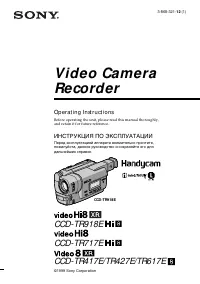 Sony CCD-TR617E
Инструкция по эксплуатации
Sony CCD-TR617E
Инструкция по эксплуатации
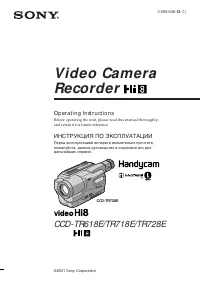 Sony CCD-TR618E
Инструкция по эксплуатации
Sony CCD-TR618E
Инструкция по эксплуатации