Страница 2 - English; Vision; WARNING; Русский; ПРЕДУПРЕЖДЕНИЕ
2 English Welcome! Congratulations on your purchase of this SonyHandycam Vision camcorder. With your Handycam Vision you can capture life’s preciousmoments with superior picture and soundquality.Your Handycam Vision is loaded with advancedfeatures, but at the same time it is very easy touse. You w...
Страница 3 - Table of contents; Оглавление
3 Before you begin Перед началом эксплуатации Table of contents Оглавление Перед начлом эксплуатации Использование данного руководства ....................... 4 Проверка прилагаемых принадлежностей .............. 6 Подготовка к эксплуатации Зарядка и установка батарейного блока ................. 7 В...
Страница 4 - Before you begin; Using this manual; in the illustrations, you can; Note on Cassette Memory; Перед началом эксплуатации; Примечание к кассете с памятью
4 Before you begin Using this manual As you read through this manual, buttons andsettings on the camcorder are shown in capitalletters.e.g., Set the POWER switch to CAMERA.As indicated with ≥ in the illustrations, you can hear the beep sound to confirm your operation. Note on Cassette Memory This ca...
Страница 5 - Precautions on camcorder care; • Do not let the camcorder get wet. Keep the
5 Before you begin Перед началом эксплуатации [a] [b] Precautions on camcorder care • The LCD screen and/or the colour viewfinderare manufactured using high-precisiontechnology. However, there may be sometiny black points and/or bright points (red,blue or green in colour) that constantlyappear on th...
Страница 7 - CHARGE; Charging the battery pack; mark with the edge of the terminal; normal; Getting started; Зарядка батарейного блока; нормальная зарядка завершена; Подготовка к эксплуатации
7 Getting started Подготовка к эксплуатации CHARGE 1 2 3 Before using your camcorder, you first need tocharge and install the battery pack. To charge thebattery pack, use the supplied AC poweradaptor.This camcorder operates only with the“InfoLITHIUM” battery pack. “InfoLITHIUM” is a trademark of Son...
Страница 8 - Charging time; Battery pack; Battery life; While using with viewfinder; Время зарядк
8 Charging time Battery pack Charging time * NP-F330 (supplied) 130 (70) NP-F550 180 (120) NP-F530 170 (110) The time required for a normal charge isindicated in parentheses.* Approximate minutes to charge an empty battery pack using the supplied AC poweradaptor. (Lower temperatures require a longer...
Страница 9 - To remove the battery pack; Notes on charging the battery pack; Для снятия батарейного блока; Примечания к зарядке батарейного блока
9 Getting started Подготовка к эксплуатации Charging and installing thebattery pack Notes on remaining battery time indicationduring recording • Remaining battery time is displayed in the viewfinder or on the LCD screen. However, theindication may not be displayed properly,depending on using conditi...
Страница 10 - Installing the battery pack; When removing battery pack; Установка батарейного блока; При снятии батарейного блока; Battery release lever/
10 Charging and installing thebattery pack Installing the battery pack ( 1 ) Set the POWER switch to OFF to preventmisoperation of the camcorder. ( 2 ) To open the lid of the battery compartment,slide the OPEN (BATT) release lever. ( 3 ) Insert the battery pack in the direction of thearrow. ( 4 ) Cl...
Страница 11 - Notes; To eject the cassette; Inserting a cassette; Убедитесь, что источник питания установлен.; Примечания; Для выталкивания кассеты; будут; Вставка кассеты
11 Getting started Подготовка к эксплуатации 1 2 3 PUSH You can use mini DV cassette with logo* only.Make sure that the power source is installed. ( 1 ) While pressing the small blue button on theEJECT switch, slide it in the direction of thearrow. The cassette lid and compartmentopen. ( 2 ) Insert ...
Страница 12 - Basic operations; Camera recording; Основные операции
12 3 2 –: – –: – – STBY 0:00:00 REC 40min 60min VTR CAMERA OFF POWER VTR CAMERA OFF POWER 1 Basic operations Camera recording Make sure that the power source is installed anda cassette is inserted and that the START/STOPMODE switch (p. 17) is set to . Before you record one-time events, you may want ...
Страница 13 - To focus the viewfinder lens; Note on Standby mode; Для временной остановки записи; Примечание к режиму готовности
13 Basic operations Основные операции To stop recording momentarily [a] Press START/STOP. The “STBY” indicatorappears in the viewfinder (Standby mode) . To finish recording [b] Press START/STOP again to stop recording. Setthe POWER switch to OFF. Then, eject thecassette and remove the battery pack. ...
Страница 14 - Note on Recording mode
14 Camera recording Note on Recording mode This camcorder records and plays back in SP(standard play) mode and in LP (long play)mode. Select SP or LP in the menu system. In LPmode, you can record 1.5 times as long as in SPmode. Notes on LP mode •We recommend to use this camcorder to play back a tape...
Страница 15 - Note on remaining tape indicator; Using the zoom feature; Примечание к индикаци оставшейся ленты
15 Basic operations Основные операции Camera recording T W W T W T Note on remaining tape indicator The indicator may not be displayed accuratelydepending on the tape. Though the indicatordoes not appear at the time of recording, it willappear in a few seconds. Using the zoom feature Zooming is a re...
Страница 16 - Notes on digital zoom; Правая сторона
16 Camera recording Notes on digital zoom • More than 10x zoom is performed digitally, and the picture quality deteriorates as you gotoward the “T” side. If you do not want to usethe digital zoom, set the D ZOOM function toOFF in the menu system. • The right side [ a ] of the power zoom indicator sh...
Страница 17 - Selecting the start/stop mode; : Recording starts when you press; If you selected; Выбор режима начала/остановки; : Запись начинается когда Вы; ANTI GROUND SHOOTING; Если Вы выбрали
17 Basic operations Основные операции VTR CAMERA OFF POWER 2 0:00:04 REC 0:00:00 REC 1 5SEC ANTI GROUND SHOOTING START/STOP MODE Camera recording Selecting the start/stop mode Your camcorder has two modes besides normalstart/stop mode. These modes enable you to takea series of quick shots resulting ...
Страница 18 - Note on 5SEC recording; Shooting with the LCD screen; Примечание к записи 5SEC
18 To extend the recording time in 5SECmode Press START/STOP again before all the dotsdisappear. Recording continues for about 5seconds from the moment you press START/STOP. Note on 5SEC recording If you have turned off the indicators on the LCDscreen, the dots do not appear. Shooting with the LCD s...
Страница 19 - Notes on the LCD panel
19 Basic operations Основные операции Camera recording Notes on the LCD panel • When closing the LCD panel, turn it vertically until it clicks [ a ] . • When turning the LCD panel, turn it always vertically; otherwise, the camcorder body maybe damaged or the LCD panel may not closeproperly [ b ] . •...
Страница 20 - To cancel mirror mode; появится; Для отмены зеркального режима
20 Letting the subject monitor theshot You can turn the LCD panel over so that it facesthe other way and you can let the subject monitorthe shot while shooting with the viewfinder. Turn the LCD panel up vertically. When youturn the LCD panel 180 degrees, the indicator appears on the LCD screen (mirr...
Страница 21 - Notes on mirror mode; Примечания к зеркальному режиму; Pr
21 Basic operations Основные операции Notes on mirror mode • When you turn the LCD panel about 90 degrees to 180 degrees, the camcorder enters mirrormode. • Using the mirror mode, you can record yourself while watching yourself on the LCD. • The picture on the LCD looks like a mirror- image while re...
Страница 23 - • Do not pick up the camcorder by the; Hints for better shooting; Советы для лучшей съемки; • Не распологайте видеокамеру так, чтобы
23 Basic operations Основные операции Place the camcorder on a flat surface or use atripod Try placing the camcorder on a table top or anyother flat surface of suitable height. If you have atripod for a still camera, you can also use it withthe camcorder. When attaching a non-Sonytripod, make sure t...
Страница 24 - Playing back a tape; Using the Remote Commander; Using the stand
24 Playing back a tape You can monitor the playback picture on theLCD screen or in the viewfinder. ( 1 ) Insert the recorded tape with the windowfacing out. ( 2 ) While pressing OPEN, open the LCD panel. ( 3 ) While pressing the small green button on thePOWER switch, set it to VTR. ( 4 ) Press 0 to ...
Страница 25 - Note on screen indicators; Various playback modes; Воспроизведение ленты; Примечание к экранным индикаторам
25 Basic operations Основные операции Playing back a tape To display the LCD screen/viewfinder screenindicators Press DISPLAY. (p. 116)To erase the indicators, press again. Note on screen indicators The screen indicator disappears when the title isdisplayed. Using headphones Connect headphones (not ...
Страница 26 - Notes on playback; Примечания к воспроизведению; Примечание к замедленному воспроизведению
26 To view the picture at 1/3 speed(slow playback) Press & on the Remote Commander during playback. For slow playback in reverse direction,press < , then press & . To resume normal playback, press ( . To view the picture at double speed For double speed playback in the reversedirection, p...
Страница 27 - Notes on End Search; • When you use a tape without cassette memory,; Примечания к поиску конца изображения
27 Basic operations Основные операции Searching for the endof the picture You can go to the end of the recorded portionafter you record and play back the tape. The tapestarts rewinding or fast-forwarding and the lastabout 5 seconds of the recorded portion playsback. Then the tape stops at the end of...
Страница 28 - Advanced operations; Place; Note on power sources; Using the mains; To use the supplied AC power adaptor:; Усовершенствованные операции; Место; Примечание по источникам питания; Использование электрической сети
28 Advanced operations Using alternativepower sources You can choose any of the following powersources for your camcorder: battery pack, mains,and 12/24 V car battery. Choose the appropriatepower source depending on where you want touse your camcorder. Place Power Accessory to be usedsource Indoors ...
Страница 29 - To remove the connecting plate; Using a car battery; Для снятия соединительной пластины
29 Advanced operations Усовершенствованные операции To remove the connecting plate The connecting plate is removed in the same wayas the battery pack. WARNING The mains lead must only be changed at aqualified service shop. PRECAUTION The set is not disconnected from the AC powersource (mains) as lon...
Страница 30 - Press MENU to erase the menu display.; Note on changing the mode settings
30 You can change the mode settings in the menusystem to further enjoy the features andfunctions of the camcorder. ( 1 ) Press MENU to display the menu on the LCDscreen. ( 2 ) Turn the control dial to select the desireditem, then press the control dial. Only theselected item is displayed. ( 3 ) Turn...
Страница 31 - Changing the mode settings; LCD BRIGHT; Для стирания наложенного Вами титра.; LCD COLOUR
31 Advanced operations Усовершенствованные операции Changing the mode settings Selecting the mode setting ofeach item r is set at the factory. Items for both CAMERA and VTRmodes LCD BRIGHT Select this item to adjust the brightness of theLCD screen. The LCD screen becomes brighterwhen you turn the co...
Страница 32 - Items for CAMERA mode only; Установки только для режима CAMERA; CLOCK SET
32 Changing the mode settings DISPLAY <LCD or V-OUT/ r LCD> • Normally select LCD.• Select V-OUT/LCD to display indicator both on the LCD panel and TV screen. AUTO TV ON <ON/ r OFF> You can use this feature only with Sony TVs.• Select ON to turn on the TV automatically when using the LAS...
Страница 33 - Notes on DEMO MODE; Items for VTR mode only; Установки только для режима VTR; Выберите установку STEREO для; TAPE TITLE
33 Advanced operations Усовершенствованные операции Changing the mode settings DEMO MODE < r STBY/ON or OFF> • Select STBY/ON to glance over the function of camcorder. • Select OFF not to display demonstration. Notes on DEMO MODE • DEMO MODE is set to STBY (Standby)/ ON at the factory and the ...
Страница 34 - When recording a close subject
34 Changing the mode settings AUDIO MIX* Select this item and adjust the balance betweenthe stereo 1 and stereo 2 by turning the controldial. CM SEARCH < r ON/OFF> • Select ON to search using cassette memory.• Select OFF to search without using cassette memory. DATA CODE <DATE/CAM or r DATE...
Страница 35 - After shooting; Note on the BACK LIGHT function; Нажмите BACK LIGHT. Индикатор; После съемки; исчезнет. В противном; Примечание к функции BACK LIGHT
35 Advanced operations Усовершенствованные операции Shooting withbacklighting [a] [b] BACK LIGHT When you shoot a subject with the light sourcebehind the subject or a subject with a lightbackground, use the BACK LIGHT function. Press BACK LIGHT. The c indicator appears on the LCD screen or in the vi...
Страница 36 - Для введения изображения
36 Using the FADERfunction You can fade in or out to give your recording aprofessional appearance.When fading in, the picture gradually fades infrom black while the sound increases. Whenfading out, the picture gradually fades to blackwhile the sound decreases. When fading in [a] ( 1 ) While the camc...
Страница 37 - To cancel the fader function; – The START/STOP MODE switch is set to; or; Using the FADER function
37 Advanced operations Усовершенствованные операции To cancel the fader function Before pressing START/STOP, press FADERuntil the fade indicator disappears. You cannot use the fader function in thefollowing situations – The START/STOP MODE switch is set to ANTI GROUND SHOOTING or 5SEC . – The camcor...
Страница 38 - Photo recording; Запись фотографий
38 Photo recording You can record a still picture like a photographfor about seven seconds. This photo recording isuseful when you want to enjoy a picture such asa photograph or when you print a picture using avideo printer (not supplied). You can recordabout 510 pictures on a 60-minute tape in SPmo...
Страница 39 - Video printer; Printing the still picture
39 Advanced operations Усовершенствованные операции LINE IN VIDEO S VIDEO Video printer Видеопринтер Ç : Signal flow/ Передача сигнала When you press PHOTO during normalrecording The picture on the LCD screen or in theviewfinder whenever you press PHOTO will berecorded. You cannot check the recorded...
Страница 41 - Selecting wide picture mode; To cancel wide mode; Select OFF in step 3, then press the control dial.; Note on wide mode; Выбор широкоформатного режима; Для отмены широкоформатного режима; Примечание к широкоформатному режиму
41 Advanced operations Усовершенствованные операции Using the wide modefunction Selecting wide picture mode ( 1 ) Press MENU to display the menu on the LCDscreen. ( 2 ) Turn the control dial to select 16:9WIDE, thenpress the control dial. ( 3 ) Turn the control dial to select ON, then pressthe contr...
Страница 42 - Selecting the best mode; Notes on focus setting; • In the Spotlight, Sports lesson and Beach & Ski; Выбор наилучшего режима
42 Using the PROGRAMAE function You can select from six PROGRAM AE (AutoExposure) modes to suit your shooting situation.When you use PROGRAM AE, you can get aPortrait effect (the subject is in focus and thebackground is out of focus), capture high-speedaction, record night views, etc. Selecting the ...
Страница 44 - Focusing manually; When to use manual focus; • Insufficient light; Ручная фокусировка; При недостаточном освещении
44 Focusing manually When to use manual focus In the following cases you should obtain betterresults by adjusting the focus manually. • Insufficient light [a] • Subjects with little contrast — walls, sky, etc. [b] • Too much brightness behind the subject [c] • Horizontal stripes [d] • Subjects throu...
Страница 45 - indicator appears on; To return to the autofocus mode; Press FOCUS to turn off; Note on manual focusing; The following indicators may appear:; Примечание по ручной фокусировке; Могут появиться следующие индикаторы:
45 Advanced operations Усовершенствованные операции Focusing manually When focusing manually, first focus in telephotobefore recording, and then reset the shot length. ( 1 ) Press FOCUS. The f indicator appears on the LCD screen or in the viewfinder. ( 2 ) Turn the control dial to focus on the subje...
Страница 46 - Selecting picture effect; The picture is in pastel tones.; The picture is sepia.; Выбор видеоэффекта; Изображение приобретает пастельные тона.; SEPIA; Изображение будет в цвете сепии.
46 Enjoying pictureeffect Selecting picture effect You can make pictures like those of televisionwith the Picture Effect function. PASTEL [a] The picture is in pastel tones. NEG. ART [b] The colour of the picture is reversed. SEPIA The picture is sepia. B&W The picture is monochrome (black and w...
Страница 47 - Enjoying picture effect; Using picture effect function; To return to normal mode; Note on the picture effect; Наслаждение эффектами; Для возврата к нормальному режиму; Примечание к эффектам изображения
47 Advanced operations Усовершенствованные операции Enjoying picture effect Using picture effect function ( 1 ) Press MENU to display the menu on the LCDscreen. ( 2 ) Turn the control dial to select P EFFECT, thenpress the control dial. ( 3 ) Turn the control dial to select the desiredpicture effect...
Страница 48 - When to adjust the exposure; Недостаточная освещенность: большая; Регулировка экспозиции
48 Adjusting theexposure [ a ] [ b ] 1 2 EXPOSURE When to adjust the exposure Adjust the exposure manually under thefollowing cases. [ a ] • The background is too bright (back lighting)• Insufficient light: most of the picture is dark [ b ] • Bright subject and dark background• To record the darknes...
Страница 49 - Adjusting the exposure; Superimposing a title; •When you adjust the exposure manually, you; При ручной регулировке экспозиции; Наложение титра
49 Advanced operations Усовершенствованные операции Adjusting the exposure Superimposing a title If you use a tape with cassette memory, you cansuperimpose the titles while recording or afterrecording. When you play back the tape, the titleis displayed for 5 seconds from the point whereyou superimpo...
Страница 50 - Superimposing titles; Press the control dial again to complete the; H A P P Y; Наложение титров
50 Superimposing a title Superimposing titles ( 1 ) Press TITLE to display the titles on the LCDscreen or in the viewfinder. ( 2 ) Turn the control dial to select the title, thenpress the control dial. ( 3 ) Turn the control dial to select the colour, size,or position, then press the control dial. (...
Страница 51 - While in Standby mode; When you have stored an original title; на экран в течение пяти секунд; Если Вы ввели в память собственный титр,; Выберите позицию OFF в меню TITLE DSPL.
51 Advanced operations Усовершенствованные операции While you are playing back, pausing,or recording After step 6, “SAVE” appears on the screen for 5seconds and the title is set. While in Standby mode After step 6, the “TITLE” indicator appears. Andwhen you press START/STOP to start recording,“SAVE”...
Страница 52 - О титрах
52 Notes on titles • While the title is displayed, the picture does not fade in or out. • You cannot superimpose a title to a blank portion of the tape. • The titles you superimposed are displayed by only using the DV format video equipmentwith index titler function. • When you are searching the tap...
Страница 53 - Erasing a title; Press MENU to display the menu.; Note; Стирание титра; Примечание
53 Advanced operations Усовершенствованные операции Erasing a title ( 1 ) Press MENU to display the menu. ( 2 ) Turn the control dial to select TITLEERASE,then press the control dial. ( 3 ) Turn the control dial to select the title youwant to erase, then press the control dial. ( 4 ) Make sure the t...
Страница 55 - Making a custom title; To erase a character; In step 3, turn the control dial to select; To change the title you have made; Создание собственного титра; Стирание знака
55 Advanced operations Усовершенствованные операции Making a custom title To erase a character In step 3, turn the control dial to select [ M ] then press the control dial. The last character is erased. To change the title you have made In step 2, turn the control dial to select CUSTOMTITLE, then pr...
Страница 56 - If it takes more than 5 minutes to make a title; Insert the cassette you want to label.; Labeling a cassette; Обозначение кассеты
56 If it takes more than 5 minutes to make a title If the Standby mode lasts for more than 5minutes with a cassette inserted, the power willbe turned off automatically. If the power isturned off while you are making a title, set thePOWER switch to OFF once, then to CAMERA.The title you have made rem...
Страница 57 - In step 5 turn the control dial to select [; To change the label you have made
57 Advanced operations Усовершенствованные операции To erase a character In step 5 turn the control dial to select [ M ], then press the control dial. The last character is erased. To change the label you have made Insert the cassette to change the label, andoperate in the same way to make a new lab...
Страница 58 - If the; Если в записи на кассете имеются титры; Индикатор “; О видеокассетах
58 Labeling a cassette If the mark appears in step 4 The cassette memory is full. If you erase the titlein the cassette, you can label it. If you have superimposed titles in the cassette When the label is displayed, up to 4 titles alsoappear. Note on “-----” indicator displayed on the LCDscreen or i...
Страница 59 - indicator appears on the
59 Advanced operations Усовершенствованные операции When you shoot, the indicator appears on the LCD screen or in the viewfinder. This indicatesthat the SteadyShot function is working and thecamcorder compensates for camera-shake. You can release the SteadyShot function whenyou do not need to use th...
Страница 60 - исчезает с
60 To activate the SteadyShot functionagain Select ON in step 3, then press the control dial. Notes on the SteadyShot function • The SteadyShot function will not correct excessive camera-shake. • When you switch the SteadyShot function on or off, the exposure may fluctuate. • When the SteadyShot fun...
Страница 61 - Передача сигнала
61 Advanced operations Усовершенствованные операции Connect the camcorder to your VCR or TV towatch the playback picture on the TV screen.When monitoring the playback picture byconnecting the camcorder to your TV, werecommend you to use mains for the powersource. Connecting directly to a VCR/TVwith ...
Страница 62 - Watching on a TV screen; If your VCR or TV is a monaural type; LASER LINK mark; To cancel the LASER LINK function; LASER LINK; LASER LINK, к Вашему; Для воспроизведения на телевизоре; Нажмите; Для отмены функции LASER LINK
62 Watching on a TV screen If your VCR or TV is a monaural type Connect only the white plug for audio on boththe camcorder and the VCR or the TV. If youconnect the white plug, the sound is L (left)signal. If you connect the red plug, the sound is R(right) signal. Using the AV cordless IRreceiver L...
Страница 63 - If you use a Sony TV; • Вы можете включать телевизор; Примечания к LASER LINK
63 Advanced operations Усовершенствованные операции Watching on a TV screen If you use a Sony TV • You can turn on the TV automatically when you press LASER LINK or ( . To do so, set AUTO TV ON to ON in the menu system andturn the TV’s main switch on , then do either ofthe following; – Point the LAS...
Страница 64 - • Without using cassette memory.
64 Searching the boundaries of recorded tape with date – date search You can search for the boundaries of recordedtape with date – Date Search function. To searchthe beginning of the specific date and play backfrom the point, there are two ways:• Using cassette memory, you can select the date displa...
Страница 65 - To stop searching; Press; • The interval of the boundaries between the; Для остановки поиска
65 Advanced operations Усовершенствованные операции To stop searching Press p . Notes • The interval of the boundaries between the dates needs more than two minutes. Thecamcorder may not search if the beginning ofthe recorded date is too close to the next one. • The short cursor on the screen sugges...
Страница 67 - Поиск границ на записанной
67 Advanced operations Усовершенствованные операции D A T E S E A R C H 5 6 1 2,3,4 MENU C M S E A R C H O N O F F VTR CAMERA OFF POWER MENU Searching the boundariesof recorded tape withtitle – title search You can search for the boundaries of recordedtape with title – Title Search function. If you ...
Страница 69 - Searching for a photo; • You cannot superimpose or search a title, if you
69 Advanced operations Усовершенствованные операции Searching for a photo – photo search/photo scan You can search for the recorded still picture –Photo Search function. There are two modes inPhoto Search:• Using cassette memory, you can select the recorded date which is displayed on the LCDscreen o...
Страница 70 - Нажмите MENU для отображения меню.
70 P H O T O S E A R C H P H O T O S E A R C H 5 6 1 2,3,4 MENU C M S E A R C H O N O F F 2 2 / 8 / 9 8 1 7 : 0 03 4 / 9 / 9 8 1 1 : 0 0 1 1 / 7 / 9 8 8 : 5 2 2 2 / 8 / 9 8 1 7 : 0 03 4 / 9 / 9 8 1 1 : 0 0 1 1 / 7 / 9 8 8 : 5 2 VTR CAMERA OFF POWER MENU Searching for a photo by usingcassette memory ...
Страница 73 - Scanning photo – photo scan; Set the POWER switch to VTR.
73 Advanced operations Усовершенствованные операции 2 3 PHOTO 00 SCAN 1 VTR CAMERA OFF POWER Scanning photo – photo scan You can use this function whether the tape hascassette memory or not. ( 1 ) Set the POWER switch to VTR. ( 2 ) Press SEARCH MODE on the RemoteCommander repeatedly until the photo ...
Страница 74 - Примечание к счетчику ленты
74 Using the Remote Commander, you can easily goback to the desired point on a tape afterplayback. ( 1 ) During playback, press ZERO SET MEMORYat the point you later want to locate. Thecounter shows “0:00:00” and “ZERO SETMEMORY” appears on the LCD screen or inthe viewfinder. ( 2 ) Press p when you ...
Страница 75 - To select the items to be displayed; Для выбора элементов отображения; различные; Если появлются черточки
75 Advanced operations Усовершенствованные операции MANUAL1 0 0 0 0 AWBF 1 . 6 1 8dB 4 7 199810:13:02 DATA CODE You can display recording data (date/time orvarious settings when recorded) on the LCDscreen or in the viewfinder during playback(Data Code). The Data Code is also displayed onthe TV.You c...
Страница 76 - Betamax VCR that; Before editing; Using the DV connecting cable; Перед монтажем
76 Editing onto anothertape You can create your own video programme byediting with any other DV, mini DV, h 8 mm, H Hi8, j VHS, k S-VHS, VHSC, K S-VHSC or l Betamax VCR that has audio/video inputs. You can edit with littledeterioration of picture and sound quality whenusing the DV connecting cable...
Страница 77 - Editing onto another tape; или; Монтаж на другую ленту
77 Advanced operations Усовершенствованные операции Editing onto another tape Ç : Signal flow/ Передача сигнала S VIDEOOUT (not supplied)/ (Не прилагается) AUDIO/VIDEOOUT S VIDEO IN VIDEO AUDIO [a] [b] Notes on editing when using the DVconnecting cable • You can connect one VCR only.• You can record...
Страница 78 - Starting editing; To edit more scenes; Начните монтаж; Для монтажа других сцен
78 Editing onto another tape Notes on editing when using the A/Vconnecting cable • Press DATA CODE , SEARCH MODE, or DISPLAY to turn off the display indicators.Otherwise, the indicators will be recorded onthe tape. • If your TV or VCR is a monaural type, connect the yellow plug of the A/V connecting...
Страница 79 - To change the end point; Note on the inserted picture; Для изменения конечной точки; Примечание к вставленному изображению
79 Advanced operations Усовершенствованные операции Replacing recordingon a tape – insertediting You can insert a new scene from a VCR ontoyour originally recorded tape by specifyingstarting and ending points. After insertingediting, the previous picture and sound will beerased.Connection is the sam...
Страница 80 - Audio dubbing; Audio equipment
80 LINE OUT L R You can record an audio sound to add to theoriginal sound on a tape by connecting audioequipment or a microphone. If you connect theaudio equipment, you can add a sound on yourrecorded tape by specifying starting and endingpoints. The original sound will not be erased. Note You can c...
Страница 81 - Notes on audio dubbing
81 Advanced operations Усовершенствованные операции Audio dubbing Notes on audio dubbing • A new sound cannot be recorded on a tape already recorded in the 16-bit mode (32 kHz,44.1 kHz or 48 kHz). • When an external microphone is not connected, the recording will be made through the built-inmicropho...
Страница 82 - To play back the new recorded sound; To end audio more precisely
82 Audio dubbing MENU [ ] M E N U A U D I O M I X S T 1 S T 2 : E N D To play back the new recorded sound Adjust the balance between the original sound(ST1) and the new sound (ST2) by selectingAUDIO MIX in menu system. Five minutes after when you disconnect thepower source or remove the battery pack...
Страница 83 - Additional information; Selecting cassette types; Дополнительная информация; Выбор типов кассет; Вы можете использовать только кассеты; для полного
83 Additional information Дополнительная информация Additional information Usable cassettes andplayback modes Selecting cassette types You can use the mini DV cassette only. You cannot use any other DV, h 8 mm, H Hi8, j VHS, k S-VHS, VHSC, K S- VHSC or l Betamax cassette. We recommend mini DV cass...
Страница 84 - When you play back; Copyright signal; When playing back; Audio mode; Во время воспроизведения; Сигнал авторского права; При воспроизведении; Звуковой режим
84 When you play back Copyright signal When playing back Using any other video camera recorder, youcannot record on a tape that has recorded acopyright control signals for copyright protectionof software which is played back in thiscamcorder. When recording Using this camcorder, you cannot recordsof...
Страница 85 - Notes on the mini DV cassette; To prevent accidental erasure; Note on gold-plated connector; Примечания к кассете mini DV; Примечание к позолоченному контакту
85 Additional information Дополнительная информация Usable cassettes andplayback modes Notes on the mini DV cassette To prevent accidental erasure Slide out the protect tab on the cassette so thatthe red portion is visible. [a] When affixing a label on the mini DVcassette Be sure to affix a label on...
Страница 86 - • Or install the fully charged battery pack in the
86 Charging the vanadium-lithium battery in thecamcorder Your camcorder is supplied with a vanadium-lithium battery installed so as to retain the dateand time, etc., regardless of the setting of thePOWER switch. The vanadium-lithium battery isalways charged as long as you are using thecamcorder. The...
Страница 88 - To correct the date and time setting; The year indicators changes as follows:; Resetting the date and time; Повторите пункты с 2 по 5.; Примечание к индикатору времени; Установка даты и времени
88 To correct the date and time setting Repeat steps 2 to 5. The year indicators changes as follows: Note on the time indicator The internal clock of this camcorder operates ona 24-hour cycle. Resetting the date and time 1998 1999 2029 ..... 2001 ..... 1998 1999 2029 ..... 2001 ..... Для корректиров...
Страница 89 - Preparing the battery pack; Always carry additional batteries; Подготовка батарейного блока
89 Additional information Дополнительная информация Tips for using thebattery pack This section shows you how you can get the mostout of your battery pack. Preparing the battery pack Always carry additional batteries Have sufficient battery pack power to do 2 to 3times as much recording as you have ...
Страница 90 - Caution; появляется и начинает; Предостережение
90 Tips for using the batterypack When to replace the batterypack While you are using your camcorder, theremaining battery indicator on the LCD screen orin the viewfinder decreases gradually as batterypower is used up.The remaining time in minutes also appears. When the remaining battery indicator r...
Страница 91 - Battery pack care; , and keep it in a cool; The life of the battery pack; Уход за батарейным блоком; , видеоаппаратура будет
91 Additional information Дополнительная информация Tips for using the batterypack Battery pack care • Remove the battery pack from thecamcorder after using it , and keep it in a cool place. When the battery pack is installed to thecamcorder, a small amount of current flows tothe camcorder even if t...
Страница 93 - ) battery pack in 25; Notes on charging; A brand-new battery pack; Примечания к зарядке; Совершенно новый батарейный блок
93 Additional information Дополнительная информация Why the remaining batteryindication does not match thecontinuous recording time in theoperating instruction The recording time is affected by theenvironmental temperature and conditions. Therecording time becomes very short in a coldenvironment. Th...
Страница 94 - Notes on the terminals; Be sure to observe the following; • Do not expose the battery pack to any; Примечания к контактам; Обязательно соблюдайте следующее; Храните батарейный блок сухим.
94 Notes on the terminals If the terminals (metal parts on the back)are not clean, the battery charge durationwill be shortened. When the terminals are not clean or when thebattery pack has not been used for a long time,repeatedly install and remove the battery pack afew times. This improves the con...
Страница 95 - Moisture condensation; Inside the camcorder; indicator flashes. If this; On the lens; Конденсация влаги; Внутри видеокамеры; будет; На объективе
95 Additional information Дополнительная информация Maintenance informationand precautions Moisture condensation If the camcorder is brought directly from a coldplace to a warm place, moisture may condenseinside the camcorder, on the surface of the tape,or on the lens. In this condition, the tape ma...
Страница 96 - Video head cleaning; Очистка видеоголовок
96 Maintenance informationand precautions Video head cleaning To ensure normal recording and clear pictures,clean the video heads.The video heads may be dirty when:• mosaic-pattern noise appears on the playback picture • playback pictures do not move• playback pictures are hardly visible• playback p...
Страница 97 - Precautions; Camcorder operation; Предосторожности; Эксплуатация видеокамеры
97 Additional information Дополнительная информация Precautions Camcorder operation • Operate the camcorder on 7.2 V (battery pack) or 8.4 V (AC power adaptor). • Should any solid object or liquid get inside the casing, unplug the camcorder and have itchecked by Sony dealer before operating it anyfu...
Страница 98 - AC power adaptor; Charging; Сетевой адаптер перем. тока; Зарядка; Не разбирайте аппарат.
98 AC power adaptor Charging • Use only an “InfoLITHIUM” type battery pack.• Place the battery pack on a flat surface without vibration during charging. • The battery pack will get hot during charging. This is normal. Others • Unplug the unit from the mains when not in use for a long time. To discon...
Страница 99 - Note on dry batteries; If battery leakage occurred; •Wipe off the liquid in the battery case carefully; Примечания к сухим батарейкам; Не используйте различные типы батареек.; Если случится протечка батареек
99 Additional information Дополнительная информация Note on dry batteries To avoid possible damage from battery leakageor corrosion, observe the following.• Be sure to insert the batteries in the correct direction. • Dry batteries are not rechargeable.• Do not use a combination of new and old batter...
Страница 100 - PAL system; Brazil; NTSC system; Источники питания; Система PAL; Бразилия; Система NTSC
100 Using your camcorderabroad Each country or area has its own electric and TVcolour systems. Before using your camcorderabroad, check the following points. Power sources You can use your camcorder in any country orarea with the supplied AC power adaptor within110 V to 240 V AC, 50/60 Hz. Differenc...
Страница 107 - Проверка неисправностей; местное уполномоченное предприятие по обслуживанию Sony.; Видеокамера; Питание; Работа; Признак
107 Additional information Дополнительная информация Русский Проверка неисправностей Если у Вас возникла какая-либо проблема при использовании видеокамеры, воспользуйтесь следующей таблицей для отыскания и устранения проблемы. Если трудности все еще остаются, то отсоедините источник питания и обрати...
Страница 108 - Причина и/или действия по устранению
108 Работа Признак Лента не перемещается принажатии кнопки перемещенияленты. Нет звука или только низкий звукслышен при воспроизведенииленты. Новый звук, наложенный наленту, не прослушивается.Не активизируется функцияустойчивой съемки.Запись останавливается черезнесколько секунд. Не активизируется ф...
Страница 109 - Изображение; Причина и/или действия по исправлению
109 Additional information Дополнительная информация Продолжение на следующей странице Работа Признак Функция поиска титра не работает. Индикатор не появляется при использовании ленты кассеты с памятью.Поиск даты, поиск титра или поиск конца не работает правильно. Изображение Признак Изображение на ...
Страница 110 - Действия по исправлению; Сетевой адаптер переменного тока
110 Действия по исправлению • Отсоедините сетевой провод. Приблизительно через 1минуту снова подсоедините сетевой провод. (стр. 7) • Смотрите схему на следующей странице. Проверка неисправностей Проверка неисправностей Признак Во время монтажа с использованием цифрового видеокабелязаписываемое изобр...
Страница 111 - Проверка неисправноестей; Когда мигает лампочка CHARGE; Проверьте по следующей схеме.
111 Additional information Дополнительная информация Проверка неисправноестей Когда мигает лампочка CHARGE Проверьте по следующей схеме. Если лампочка CHARGE мигаетопять Установите другой батарейныйблок. Если лампочка CHARGE мигаетопять Имеется проблема у сетевогоадаптера перем. тока. Обратитесь, по...
Страница 112 - Функция самодиагностики; Произошла конденсация влаги.; Пятизначный дисплей
112 C : 21: 00 STBY 40min 40min Русский Функция самодиагностики Причина и/или действия по исправлению • Произошла конденсация влаги. m Выньте кассету и оставьте видеокамеру по меньшей мерена 1 час. (стр. 95) • Грязные видеоголовки. m Очистите видеоголовки с использованием очистительнойкассеты DVM12C...
Страница 114 - Технические характеристики; Система
114 Русский Технические характеристики Видеокамера Система Система видеозаписи Две вращающиеся головки, система наклонной механической развертки Система аудиозаписи Вращающиеся головки, система РСМ Квантование: 12 битов (сдвиг по частоте 32 кГц, стереозвучание 1, стереозвучание 2)16 битов (сдвиг по ...
Страница 115 - Identifying the parts; Опознавание частей
115 Additional information Дополнительная информация 1 Viewfinder lens adjustment lever (p. 13) 2 RESET button (p. 104) 3 Control dial (p. 30) 4 PHOTO button (p. 38) 5 START/STOP button (p. 12) 6 POWER switch (p. 12, 24) 7 Operation buttons[ a ] When the POWER switch is set to VTR 0 (rewind) button ...
Страница 118 - stands for Local Application Control Bus
118 Identifying the parts @§ Hook for shoulder strap (p. 122) @¶ LANC l control jack l stands for Local Application Control Bus System. The l control jack is used for controlling the tape transport of videoequipment and peripherals connected to it.This jack has the same function as the jackindicated...
Страница 119 - LASER LINK button; Кнопка LASER LINK
119 Additional information Дополнительная информация Identifying the parts #¢ LASER LINK button (p. 62) #∞ Laser Link emitter (p. 62) #§ Microphone #¶ Speaker #• Remote sensor (p. 121) #§ #∞ #¶ #• #¢ Опознавание частей #¢ Кнопка LASER LINK (стр. 62) #∞ Эмиттер лазерной связи (стр. 62) #§ Микрофон #¶...
Страница 120 - Remote Commander
120 Identifying the parts Remote Commander The buttons that have the same name on theRemote Commander as on the camcorderfunction identically. 1 PHOTO button (p. 38) 2 DISPLAY button (p. 25) 3 SEARCH MODE button (p. 64, 68, 70) 4 = / + buttons (p. 64, 68, 70) 5 Tape transport buttons (p. 24) 6 REC b...
Страница 121 - To prepare the Remote Commander; Note on battery life; Remote control direction; Identifying the Parts; Примечание к сроку службы батареек
121 Additional information Дополнительная информация To prepare the Remote Commander To use the Remote Commander, you must inserttwo R6 (size AA) batteries. Use the supplied R6(size AA) batteries. ( 1 ) Remove the battery cover from the RemoteCommander. ( 2 ) Insert both of the R6 (size AA) batterie...
Страница 122 - Notes on the Remote Commander; • Keep the remote sensor away from strong light; Attaching the shoulder strap; Прикрепление плечевого ремня
122 Notes on the Remote Commander • Keep the remote sensor away from strong light sources such as direct sunlight or illumination.Otherwise, the remote control may not beeffective. • Be sure that there is no obstacle between the remote sensor on the camcorder and theRemote Commander. • This camcorde...
Страница 123 - Operation indicators; Рабочие индикаторы
123 Additional information Дополнительная информация Identifying the parts Operation indicators 1 Mirror mode indicator (p. 20) 2 Zoom indicator (p. 16) /Exposure indicator (p. 48) 3 Manual focus/Infinity indicator (p. 45) 4 PROGRAM AE indicator (p. 42) 5 SteadyShot indicator (p. 59) 6 BACK LIGHT in...
Страница 124 - To watch the demonstration; While holding down; Для просмотра демонстрации; Удерживая в нажатом состоянии
124 Identifying the parts !¢ Recording standby mode indicator (p. 13) / Tape transport mode indicator !∞ Time code indicator (p. 14) /Self diagnosis indicator (p. 106) !§ Remaining tape indicator (p. 15) !¶ ZERO SET MEMORY indicator (p. 74) /Photo capture indicator (p. 38) !• END SEARCH indicator (p...
Страница 125 - Warning indicators; The battery is weak or dead.; Лента приближается к концу.; Мигание становится быстрым.
125 Additional information Дополнительная информация !º Warning indicators If indicators flash on the LCD screen or in theviewfinder or warning messages appear on thedisplay window, check the following: ≥ : you can hear the beep sound when BEEP is set to ON in the menu system. 1 The battery is weak ...
Страница 128 - Sony Corporation; Алфавитный указатель
Sony Corporation Printed in Japan A Автомобильный аккумулятор ............................................. 29 Б,В,Г Введение/выведение изображения ....................... 36 Воспроизведение на телевизоре .......................... 61 Временной код ...................... 14 Д,Е Демонстрация ...........


 Sony CCD-TR2300E
Инструкция по эксплуатации
Sony CCD-TR2300E
Инструкция по эксплуатации
 Sony CCD-TR3100E
Инструкция по эксплуатации
Sony CCD-TR3100E
Инструкция по эксплуатации
 Sony CCD-TR311E
Инструкция по эксплуатации
Sony CCD-TR311E
Инструкция по эксплуатации
 Sony CCD-TR315E
Инструкция по эксплуатации
Sony CCD-TR315E
Инструкция по эксплуатации
 Sony CCD-TR317E
Инструкция по эксплуатации
Sony CCD-TR317E
Инструкция по эксплуатации
 Sony CCD-TR3300E
Инструкция по эксплуатации
Sony CCD-TR3300E
Инструкция по эксплуатации
 Sony CCD-TR3400E
Инструкция по эксплуатации
Sony CCD-TR3400E
Инструкция по эксплуатации
 Sony CCD-TR411E / CCD-TR412E
Инструкция по эксплуатации
Sony CCD-TR411E / CCD-TR412E
Инструкция по эксплуатации
 Sony CCD-TR415E
Инструкция по эксплуатации
Sony CCD-TR415E
Инструкция по эксплуатации
 Sony CCD-TR417E
Инструкция по эксплуатации
Sony CCD-TR417E
Инструкция по эксплуатации
 Sony CCD-TR425E
Инструкция по эксплуатации
Sony CCD-TR425E
Инструкция по эксплуатации
 Sony CCD-TR427E
Инструкция по эксплуатации
Sony CCD-TR427E
Инструкция по эксплуатации
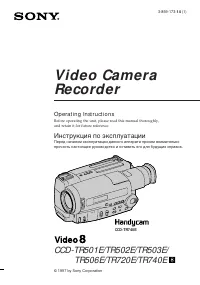 Sony CCD-TR501E / CCD-TR502E
Инструкция по эксплуатации
Sony CCD-TR501E / CCD-TR502E
Инструкция по эксплуатации
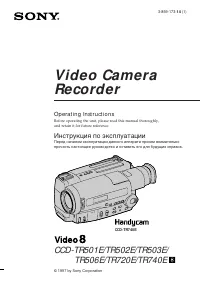 Sony CCD-TR503E / CCD-TR506E
Инструкция по эксплуатации
Sony CCD-TR503E / CCD-TR506E
Инструкция по эксплуатации
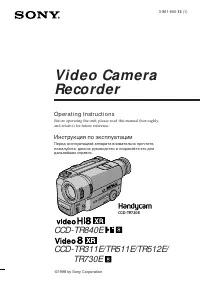 Sony CCD-TR511E / CCD-TR512E
Инструкция по эксплуатации
Sony CCD-TR511E / CCD-TR512E
Инструкция по эксплуатации
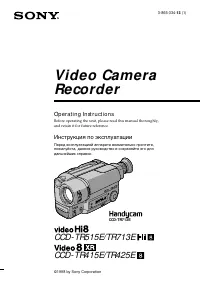 Sony CCD-TR515E
Инструкция по эксплуатации
Sony CCD-TR515E
Инструкция по эксплуатации
 Sony CCD-TR516E
Инструкция по эксплуатации
Sony CCD-TR516E
Инструкция по эксплуатации
 Sony CCD-TR617E
Инструкция по эксплуатации
Sony CCD-TR617E
Инструкция по эксплуатации
 Sony CCD-TR618E
Инструкция по эксплуатации
Sony CCD-TR618E
Инструкция по эксплуатации