Страница 2 - En g l i sh; camcorder. With your Digital; W ARNING; Русский; ПРЕДУПРЕЖДЕНИЕ; ВНИМАНИЕ; or; A TTEN TI ON
2 En g l i sh We l co m e ! Congratulations on your purchase of this SonyDigital Handycam camcorder. With your Digital Handycam, you can capture life’s preciousmoments with superior picture and soundquality.Your Digital Handycam is loaded with advancedfeatures, but at the same time it is very easy t...
Страница 4 - Оглавление
4 Русский Оглавление Проверка прилагаемых принадлежностей .... 5 Руководство по быстрому запуску ............ 8 Подготовка к эксплуатации Использование данного руководства .......... 10Пункт 1 Подготовка источника питания ..... 13 Зарядка батарейного блока ....................... 13Установка батарей...
Страница 5 - и л и
5 G etting s tarted Подготовка к эксплуатации Ch e ck i n g su p p l i e da cce sso r i e s 7 1 W ireless Remot e Commander (1) (p. 192) RMT-812: DCR-PC5ERMT-809: DCR-PC4E 2 AC-VF10 pow er adapt or (1), M ains lead (1) (p. 13) 3 DK-115 Connect ing cord (1) (p. 18) 4 NP-FS11 bat t ery pack (1) (p. 13...
Страница 8 - Руководство по быстрому запуску; Подсоединение провода электропитания; на кассетном; Установка кассеты; Рукоятка поддержки
8 Руководство по быстрому запуску Русский Руководство по быстрому запуску В данной главе приведены основныефункции Вашей видеокамеры. Подробныесведения приведены на странице в круглыхскобках “( )”. Притяните вниз рукоятку поддержки дляподдерживания Вашей видеокамеры, какпоказано на рисунке. Передвин...
Страница 9 - Запись изображения
9 Руководство по быстрому запуску 2 Когда панельЖКДзакрыта,вытащитевидоискательтак, чтобыонзащелкнулся.Используйтевидоискатель,прислонивВаш глаз кокуляру. Контроль воспроизводимого изображения наэкране ЖКД (стр. 34) ПРИМЕЧАНИЕ Не поднимайте Вашувидеокамеру, держа ееза видоискатель, панельЖКД, батаре...
Страница 10 - — Ge t t i n g st a r t e d —; Usi n g t h i s m a n u a l; Types of dif f erences; Provided; — Подготовка к эксплуатации —; Использование данного руководства; Типы различий; Имеется
10 — Ge t t i n g st a r t e d — Usi n g t h i s m a n u a l The instructions in this manual are for the twomodels listed in the table below. Before you startreading this manual and operating yourcamcorder, check the model number by lookingat the bottom of your camcorder. TheDCR-PC5E is the model us...
Страница 11 - Примечание по кассетной памяти
11 G etting s tarted Подготовка к эксплуатации Примечание по кассетной памяти Ваша видеокамера основана на формате DV.Вы можете использовать для Вашейвидеокамеры только кассеты mini DV.Рекомендуется использовать ленту скассетной памятью . Функции, для которых требуются разныеоперации в зависимости и...
Страница 12 - • Do not let your camcorder get wet. Keep your
12 Usi n g t h i s m a n u a l Pr e ca u t i o n s o n ca m co r d e r ca r e • The LCD screen and t he view f inder aremanuf act ured using high-precisiont echnology. How ever, t here may be somet iny black point s and/ or bright point s (red,blue, green, or w hit e) t hat const ant ly appearon t h...
Страница 13 - St e p 1 Pre p a r i n g t h e; Ch a r g i n g t h e b a t t e r y p a ck; Connect the mains lead to the AC adaptor.; normal; CHARGE; Пункт 1 Подготовка; Зарядка батарейного блока; Когда погаснет лампочка CHARGE; нормальная зарядка; будет завершена. Для; полной зарядки; , которая позволяет Вам; Ch a r g i n g t i m e /
13 G etting s tarted Подготовка к эксплуатации0 St e p 1 Pre p a r i n g t h e p o w e r su p p l y Ch a r g i n g t h e b a t t e r y p a ck Use the battery pack after charging it for yourcamcorder.Your camcorder operates only with the“InfoLITHIUM” battery pack (S series). (1) Connect the mains lea...
Страница 14 - Numbers in parentheses “(; St e p 1 Pr e p a r i n g t h e p o w e r; Recording w it h; Пункт 1 Подготовка источника; )” указывают время при
14 Re co r d i n g t i m e / Время записи Approximate number of minutes when you use afully charged battery Numbers in parentheses “( )” indicate the time when using a normally charged battery. * Approximate continuous recording time at25°C (77°F). The battery life will be shorter ifyou use your cam...
Страница 17 - Pl a y i n g t i m e /; Not es on t he AC adapt or; • The charging time may differ depending on the; Playing t ime
15 G etting s tarted Подготовка к эксплуатации0 Pl a y i n g t i m e / Время воспроизведения Approximate number of minutes when you use afully charged battery Numbers in parentheses “( )” indicate the timewhen using a normally charged battery.The battery life will be shorter if you use yourcamcorder...
Страница 18 - Charging t emperat ure; Remove the battery pack from the AC adaptor.; Plug t he mains lead deeply
16 St e p 1 Pr e p a r i n g t h e p o w e r su p p l y Пункт 1 Подготовка источника питания • Keep the battery pack dry.• When the battery pack is not to be used for a long time, charge the battery pack once fully,and then use it until it fully discharges again.Keep the battery pack in a cool place...
Страница 19 - Af t er inst alling t he bat t ery pack; После установки батарейного блока; To r e m o v e t h e b a t t e r y p a ck; I n st a l l i n g t h e b a t t e r y p a ck; , slide the battery terminal; Установка батарейного блока
17 G etting s tarted Подготовка к эксплуатации0 Af t er inst alling t he bat t ery pack Do not carry your camcorder by holding thebattery pack. If you do so, the battery pack mayslide off your camcorder unintentionally,damaging your camcorder. Not e on t he remaining bat t ery t ime indicat or The r...
Страница 20 - To r e m o v e t h e co n n e ct i n g p l a t e; Для снятия соединительной пластины; Подсоединение к сетевой розетке
18 To r e m o v e t h e co n n e ct i n g p l a t e The connecting plate is removed in the same wayas the battery pack. W ARNING The mains lead must only be changed at aqualified service shop. PRECAUTION The set is not disconnected from the AC powersource (the mains) as long as it is connected tothe...
Страница 21 - To e j e ct a ca sse t t e; Not es; St e p 2 I n se r t i n g a; Для извлечения кассеты; Примечания; Пункт 2 Установка
19 G etting s tarted Подготовка к эксплуатации0 You can use mini DV cassette with logo* only.* is a trade mark. (1 ) Install the battery pack, or connect the ACadaptor for the power supply (p. 13 to 18). (2 ) Slide OPEN/ Z EJECT in the direction of the arrow and open the lid. The cassettecompartment...
Страница 22 - — Re co r d i n g – Ba si cs —; Re co rd i n g a p i ct u re; Your camcorder automatically focuses for you.
22 6 5 3 2 1 4 40min REC 0:00:01 POWER LOCK PLAYER MEMORY CAMERA OFF POWER LOCK PLAYER MEMORY CAMERA OFF — Re co r d i n g – Ba si cs — Re co rd i n g a p i ct u re Your camcorder automatically focuses for you. (1 ) Remove the lens cap and pull the lens capstring to fix it. (2 ) Install the power so...
Страница 23 - A f t e r r e co r d i n g; После записи; Удалите батарейный блок.; • Плотно пристегните ремень захвата. Не; Примечание по режиму записи
23 R ecording – B asic s Запись – Основные положения A f t e r r e co r d i n g (1 ) Set the POWER switch to OFF. (2 ) Set the Holding Grip and the viewfinder backto the previous position. (3 ) Eject the cassette. (4 ) Remove the battery pack. Not es • Fasten the grip strap firmly. Do not touch the ...
Страница 24 - Not e
24 If you leave your camcorder in t he st andbymode f or 5 minut es w hile t he casset t e isinsert ed Your camcorder automatically turns off. This isto save battery power and to prevent battery andtape wear. To resume the standby mode, set thePOWER switch to OFF, and to CAMERA again.However, your c...
Страница 25 - Sh o o t i n g w i t h t h e LCD scr e e n; Xz; Съемка с помощью экрана ЖКД; Индикатор STBY появится в виде
25 R ecording – B asic s Запись – Основные положения Sh o o t i n g w i t h t h e LCD scr e e n Press OPEN to open the LCD panel.The LCD panel moves about 90 degrees to theviewfinder side and about 180 degrees to the lensside.If you turn the LCD panel over so that it faces theother way, the indicato...
Страница 26 - To r e t u r n t o FN; LCD screen backlight; The recorded picture will not be affected.; OPEN; FN; Нажмите; Для возврата в положение FN; Задняя подсветка экрана ЖКД; Это не повлияет на записанное изображение.
26 A d j u st i n g t h e b r i g h t n e ss o f t h eLCD scr e e n (1 ) In CAMERA/MEMORY (DCR-PC5E only)mode, press FN and select PAGE2(p. 20).In PLAYER mode, press FN to displayPAGE1. (2 ) Press LCD BRT. The screen to adjust thebrightness of the LCD screen appears. (3 ) Adjust the brightness of th...
Страница 27 - Сторона “W”: для широкоугольного вида; Наезд видеокамеры более, чем 10; Наезд видеокамеры более 10; Usi n g t h e zo o m f e a t u r e; To use zoom great er t han 10; Zoom greater than 10
27 R ecording – B asic s Запись – Основные положения W T T W T W T W Re co r d i n g a p i ct u r e Запись изображения Использование функции наездавидеокамеры Передвиньте рычаг приводноговариообъектива слегка для относительномедленного наезда видеокамеры.Передвиньте его сильнее для ускоренногонаезда...
Страница 28 - • Цифровой вариообъектив начинает
28 0:00:01 45min 40 min REC FN STBY/ REC indicat or / Индикатор STBY/REC Remaining t ape indicat or / Индикатор оставшейся ленты Remaining bat t ery t ime indicat or / Индикатор времени оставшегося заряда батарейного блока Time code/ Tape count er / Код времени/Счетчик ленты Casset t e memory indica...
Страница 29 - Time code; indicator appears in the viewfinder or on; Код времени; Функция задней подсветки будет отменена.; BACK LIGHT
29 R ecording – B asic s Запись – Основные положения Re co r d i n g a p i ct u r e Time code The time code indicates the recording orplayback time, “0:00:00” (hours : minutes :seconds) in CAMERA mode and “0:00:00:00”(hours : minutes : seconds : frames) in PLAYERmode. You cannot rewrite only the tim...
Страница 30 - and “NIGHTSHOT” indicators flash on the; Usi n g Su p e r N i g h t Sh o t; Slide NIGHTSHOT to ON in CAMERA mode.; Usi n g t h e N i g h t Sh o t Li g h t; и “NIGHTSHOT” начнут; Night Shot Light emit t er /
30 Re co r d i n g a p i ct u r e Sh o o t i n g i n t h e d a r k( N i g h t Sh o t /Su p e r N i g h t sh o t ) The NightShot function enables you to shoot asubject in a dark place. For example, you cansatisfactorily record the environment ofnocturnal animals for observation when you usethis funct...
Страница 31 - • Не используйте функцию ночной съемки в; Подсветка для ночной съемки; Подсветка для ночной съемки не работает.
31 R ecording – B asic s Запись – Основные положения Re co r d i n g a p i ct u r e Запись изображения Примечания • Не используйте функцию ночной съемки в ярких местах (например, на улице в дневноевремя). Это может привести кнеисправности Вашей видеокамеры. • При удержании установки NIGHTSHOT в поло...
Страница 32 - In the standby mode, press FN and select; To ca n ce l t h e se l f -t i m e r r e co r d i n g; Press SELFTIMER so that the; Запись по таймеру самозапуска; Примечание
32 Re co r d i n g a p i ct u r e Se l f -t i m e r r e co r d i n g You can make a recording with the self-timer.This mode is useful when you want to recordyourself. (1 ) In the standby mode, press FN and select PAGE3 (p. 20). (2 ) Press SELFTIMER. The (self-timer) indicator appears on the LCD scre...
Страница 33 - Снова нажмите END SCH.; EN D SEA RCH
33 R ecording – B asic s Запись – Основные положения Re co r d i n g a p i ct u r e Запись изображения END SEARCH Вы можете дойти до конца записанной частиленты после выполнения записи. (1 ) В режиме готовности нажмите кнопку FNдля отображения PAGE1 (стр. 20). (2 ) Нажмите END SCH.Будут воспроизведе...
Страница 34 - — Pl a y b a ck – Ba si cs —; Pl a y i n g b a ck a t a p e; — Воспроизведение – Основные положения —; Воспроизведение ленты
34 — Pl a y b a ck – Ba si cs — Pl a y i n g b a ck a t a p e You can monitor the playback picture on theLCD screen. If you close the LCD panel, you canmonitor the playback picture in the viewfinder.You can also control playback using the RemoteCommander supplied with your camcorder. (1 ) Install th...
Страница 35 - W hen monit oring on t he LCD screen; Нажмите кнопку; Во время контроля на экране ЖКД
35 P laybac k – B asic s Воспроизведение – Основные положения To r e t u r n t o FN Press EXIT. To st o p p l a y b a ck Press x . W hen monit oring on t he LCD screen You can turn the LCD panel over and move itback to the camcorder body with the LCD screenfacing out. If you leave t he pow er on f o...
Страница 36 - Usi n g t h e d a t a co d e f u n ct i o n; Using t he Remot e Commander; no indicator; Not t o display various set t ings; Использование функции кода данных; Использование сенсорной панели; Нажмите кнопку DATA CODE.
36 To co n t r o l t h e d i sp l a y o f t h escr e e n i n d i ca t o r s Press DISPLAY/TOUCH PANEL on yourcamcorder or DISPLAY on the RemoteCommander supplied with your camcorder.The indicators disappear on the LCD screen.To make the indicators appear, press DISPLAY/TOUCH PANEL again. Usi n g t h...
Страница 37 - Recording dat a; V a r i o u s p l a y b a ck m o d e s; To a d v a n ce t h e t a p e; Различные устаановки; Для ускоренной перемотки ленты назад
37 P laybac k – B asic s Воспроизведение – Основные положения Pl a y i n g b a ck a t a p e Воспроизведение ленты [a ] SteadyShot OFF indicator [b ] Exposure mode indicator [c] White balance indicator [d ] Gain indicator [e ] Shutter speed indicator [f ] Aperture value indicator Recording dat a Reco...
Страница 38 - To ch a n g e t h e p l a y b a ck d i r e ct i o n
38 Pl a y i n g b a ck a t a p e Воспроизведение ленты Для изменения направлениявоспроизведения Нажмите кнопку на пульте дистанционного управления во времявоспроизведения для изменениянаправления воспроизведения. Длявозобновления обычного воспроизведения,нажмите кнопку N . Для отыскания эпизода во в...
Страница 39 - Video cont rol but t ons; Your camcorder; In t he various playback modes; image during playback.; Slow playback; Ваш пульт дистанционного управления:; Замедленное воспроизведение
39 P laybac k – B asic s Воспроизведение – Основные положения Pl a y i n g b a ck a t a p e Воспроизведение ленты To se a r ch t h e l a st sce n e r e co r d e d( EN D SEA RCH) Press END SEARCH in the stop mode. The last5 seconds of the recorded section plays back andstops. Video cont rol but t ons...
Страница 41 - If your TV or VCR has an S video jack; V i e w i n g t h e r e co r d i n g o n TV
41 P laybac k – B asic s Воспроизведение – Основные положения I f y o u r TV o r V CR i s a m o n a u r a lt y p e Connect the yellow plug of the A/V connectingcable to the video input jack and the white or thered plug to the audio input jack on the VCR orthe TV. If you connect the white plug, the s...
Страница 42 - — A d v a n ce d Re co r d i n g Op e r a t i o n s —; Set the POWER switch to CAMERA.; — Усовершенствованные операции съемки —
42 — A d v a n ce d Re co r d i n g Op e r a t i o n s — Recording a st ill im age on a t ape– Tape Phot o recording You can record a still picture. This mode is usefulwhen you want to print a picture using a videoprinter (not supplied).You can record about 510 pictures in the SP modeand about 765 p...
Страница 43 - • During tape photo recording, you cannot
43 Advanc ed R ecording Operat ions Усовершенствованные операции съемки Not es • During tape photo recording, you cannot change the mode or setting. • When recording a still picture, do not shake your camcorder. The picture may fluctuate. • The tape photo recording function does not work:– while the...
Страница 44 - Se l f -t i m e r t a p e p h o t o r e co r d i n g; исчез с экрана ЖКД или из; самозапуска будет закончена.
44 Re co r d i n g a st i l l i m a g e o n a t a p e– Ta p e Ph o t o r e co r d i n g Запись неподвижного изображенияна ленту — Фотосъемка на ленту Se l f -t i m e r t a p e p h o t o r e co r d i n g You can make a tape photo recording with theself-timer. You can also operate using the RemoteComm...
Страница 45 - S VIDEO OUT; Pr i n t i n g t h e st i l l p i ct u r e; Передача сигнала
45 Advanc ed R ecording Operat ions Усовершенствованные операции съемки AUDIO/VIDEO OUT S VIDEO OUT LINE IN VIDEO S VIDEO Pr i n t i n g t h e st i l l p i ct u r e You can print a still picture by using the videoprinter (not supplied). Connect the video printerusing the A/V connecting cable supplie...
Страница 47 - В автоматическом режиме баланса белого; • Вы вынесли Вашу видеокамеру из; В режиме блокировки баланса белого; помещения на улицу и наоборот.; W hen you record under f luorescent light ing; In t he hold w hit e balance mode; outdoors and vice versa.
47 Advanc ed R ecording Operat ions Усовершенствованные операции съемки A d j u st i n g t h e w h i t e b a l a n cem a n u a l l y Регулировка баланса белоговручную В случае фотографирования изображенияв студии при телевизионном освещении Рекомендуется использовать для записи врежиме n “в помещени...
Страница 48 - Set 16:9WIDE to OFF in the menu settings.; During recording; Usi n g t h e w i d e m o d e; или на; Во время записи
48 You can record a 16:9 wide picture to watch onthe 16:9 wide-screen TV (16:9WIDE).Black bands appear on the screen duringrecording in 16:9WIDE mode [a ]. The picture during playing back on a normal TV [b ] or a wide -screen TV [c] are compressed in the widthwise direction. If you set the screen mo...
Страница 49 - M ONOTONE; The sound is not wiped away.; MONOTONE; Звук при этом не убирается.; только плавное
49 Advanc ed R ecording Operat ions Усовершенствованные операции съемки You can fade in or out to give your recording aprofessional appearance. Usi n g t h e f a d e rf u n ct i o n NORM . FADER (f ader) / (фейдер) M OSC.FADER (mosaic) / (мозаика) BOUNCE*(Fade in only) / (только плавноевведение изоб...
Страница 50 - Usi n g t h e f a d e r f u n ct i o n; Select a desired fader mode.; To ca n ce l t h e f a d e r f u n ct i o n; OFF to return; FADER; Использование функции фейдера; При введении изображения; Выберите желаемый режим фейдера.; Для отмены функции фейдера; OFF для возврата к PAGE1, и
50 Usi n g t h e f a d e r f u n ct i o n (1 ) W hen f ading in [a] In the standby mode, press FN to displayPAGE1 (p. 20). W hen f ading out [b ] In the recording mode, press FN to displayPAGE1 (p. 20). (2 ) Press FADER. The screen to select the fadermode appears. (3 ) Select a desired fader mode. (...
Страница 51 - Wipe or Dot function only); Not e on t he bounce f unct ion; in the menu; в установках меню
51 Advanc ed R ecording Operat ions Усовершенствованные операции съемки Not e You cannot use the following functions whileusing the fader function. Also, you cannot usethe fader function while using the followingfunctions.– Digital effect– Low lux mode of PROGRAM AE (Overlap, Wipe or Dot function on...
Страница 52 - : Цвет и яркость изображения; SEPIA; : Яркость света будет; PASTEL; в установках меню для
52 You can digitally process images to obtain specialeffects like those in films or on the TV. NEG. ART [a ] : The colour and brightness of the picture are reversed. SEPIA : The picture is sepia. B&W : The picture is monochrome(black-and-white). SOLARIZE [b ] : The light intensity is clearer, an...
Страница 53 - Select OFF in P EFFECT in the menu settings.; W hile using t he pict ure ef f ect f unct ion; Выберите OFF в установках меню P EFFECT.; Если Вы выключите питание
53 Advanc ed R ecording Operat ions Усовершенствованные операции съемки To r e t u r n t o FN Press EXIT. To t u r n t h e p i ct u r e e f f e ct f u n ct i o n o f f Select OFF in P EFFECT in the menu settings. W hile using t he pict ure ef f ect f unct ion You cannot select the old movie mode wit...
Страница 55 - It ems t o adjust; Пункты для регулировки
55 Advanc ed R ecording Operat ions Усовершенствованные операции съемки Usi n g sp e ci a l e f f e ct s– D i g i t a l e f f e ct (1 ) In CAMERA mode, press FN to displayPAGE1 (p. 20). (2 ) Press DIG EFFT. The screen to select a desireddigital effect mode appears. (3 ) Select a desired digital effe...
Страница 57 - Spot light mode
57 Advanc ed R ecording Operat ions Усовершенствованные операции съемки Usi n g t h e PROGRA MA E f u n ct i o n You can select PROGRAM AE (Auto Exposure)mode to suit your specific shooting requirements. Spot light mode This mode prevents people’s faces, for example,from appearing excessively white ...
Страница 58 - Usi n g t h e PROGRA M A E f u n ct i o n
58 Usi n g t h e PROGRA M A E f u n ct i o n (1 ) In the standby/memory camera (DCR-PC5Eonly) mode, press FN to display PAGE1(p. 20). (2 ) Press MENU, then select a desiredPROGRAM AE mode in in the menu settings (p. 105). To r e t u r n t o FN Press EXIT. To t u r n t h e PROGRA M A E f u n ct i o n...
Страница 59 - Even if t he PROGRAM AE f unct ion is select ed; You can adjust the exposure.; Если выбрана функция PROGRAM AE; Вы можете отрегулировать экспозицию.
59 Advanc ed R ecording Operat ions Усовершенствованные операции съемки W hile W HT BAL is set t o AUTO in t he menuset t ings The white balance is adjusted even if thePROGRAM AE function is selected. Even if t he PROGRAM AE f unct ion is select ed You can adjust the exposure. If you are recording u...
Страница 60 - EXPO–; ночных сцен) с большой достоверностью
60 You can manually adjust and set the exposure.Adjust the exposure manually in the followingcases:• The subject is backlit• To shoot the bright subject and dark background • To record dark pictures (e.g. night scenes) faithfully (1 ) In the CAMERA/memory camera (DCR-PC5E only) mode, press FN to dis...
Страница 62 - •When the Flexible Spot Meter mode is in use,; • Когда используется режим универсального
62 Usi n g t h e sp o t l i g h t -m e t e r i n gm o d e – Fl e x i b l e Sp o t M e t e r Использование режима точечнойфотоэкспонометрии — Универсальныйточечный фотоэкспонометр Not es •When the Flexible Spot Meter mode is in use, the backlight function does not work. •Once you adjust the exposure,...
Страница 63 - Fo cu si n g m a n u a l l y; To r e t u r n t o t h e a u t o f o cu s m o d e; FOCUS; Фокусировка вручную; таком фоне, как стена или небо
63 Advanc ed R ecording Operat ions Усовершенствованные операции съемки You can gain better results by manually adjustingthe focus in the following cases:•The autofocus mode is not effective when shooting– subjects through glass coated with water droplets – horizontal stripes– subjects with little c...
Страница 64 - To r e co r d d i st a n t su b j e ct s; indicator appears. When; To f ocus precisely; Для съемки удаленных объектов; Для точной фокусировки; чтобы выполнить фокусировку на него.
64 Fo cu si n g m a n u a l l y To r e co r d d i st a n t su b j e ct s When you press FOCUS down to INFINITY. Thelens focuses on and indicator appears. When you release FOCUS, your camcorder returns tothe manual focus mode. Use this mode whenyour camcorder focuses on near objects eventhough you ar...
Страница 65 - — A d v a n ce d Pl a y b a ck Op e r a t i o n s —; — Усовершенствованные операции воспроизведения —; • Вы не можете видоизменять введенные из
65 Advanc ed P laybac k Operat ions Усовершенствованные операции воспроизведения — A d v a n ce d Pl a y b a ck Op e r a t i o n s — Pl a y i n g b a ck a t a p ew i t h p i ct u re e f f e ct s During playback, you can process a scene usingthe picture effect functions: NEG.ART, SEPIA,B&W and SO...
Страница 67 - To ca n ce l t h e PB zo o m f u n ct i o n; The PB zoom function does not work .; – Установите переключатель POWER в
67 Advanc ed P laybac k Operat ions Усовершенствованные операции воспроизведения To ca n ce l t h e PB zo o m f u n ct i o n Press END. Not e You cannot process externally input scenes usingthe PB zoom function with your camcorder. W hile displaying t he menu set t ings or t it le The PB zoom functi...
Страница 69 - ZERO SET M EM ORY
69 Advanc ed P laybac k Operat ions Усовершенствованные операции воспроизведения Qu i ck l y l o ca t i n g asce n e u si n g t h e ze rose t m e m o r y f u n ct i o n Your camcorder goes forward or backward toautomatically stop at a desired scene having atape counter value of “0:00:00”. You can do...
Страница 70 - • When you press ZERO SET MEMORY before; • Если Вы нажмете кнопку ZERO SET
70 Not es • When you press ZERO SET MEMORY before rewinding the tape, the zero set memoryfunction will be canceled. • There may be a discrepancy of several seconds between the time code and the tape counter. • The zero set memory function may not work when there is a blank portion between pictureson...
Страница 72 - To st o p se a r ch i n g; If you use a t ape w it hout casset t e memory; Для остановки поиска; В индикаторе
72 To st o p se a r ch i n g Press x on the Remote Commander. If you use a t ape w it hout casset t e memory You cannot superimpose or search a title. In t he mark • The bar in the mark indicates the present point on the tape. • The mark in the indicates the actual point you are trying to search. If...
Страница 76 - In t he
76 Se a r ch i n g f o r a p h o t o– Ph o t o se a r ch /Ph o t o sca n Поиск фото – Фотопоиск/Фотосканирование Для остановки поиска Нажмите кнопку x на пульте дистанционного управления. Поиск фото без использованиякассетной памяти (1 ) Установите переключатель POWER вположение PLAYER. (2 ) Нажмите...
Страница 77 - Сканирование фото; Для остановки сканирования; Sca n n i n g p h o t o; To st o p sca n n i n g
77 Advanc ed P laybac k Operat ions Усовершенствованные операции воспроизведения Se a r ch i n g f o r a p h o t o– Ph o t o se a r ch /Ph o t o sca n 1 POWER LOCK PLAYER MEMORY CAMERA OFF 3 2 SEARCH MODE PHOTO 00 SCAN Поиск фото – Фотопоиск/Фотосканирование Сканирование фото (1 ) Установите переклю...
Страница 78 - Usi n g t h e A /V co n n e ct i n g ca b l e; Set the POWER switch to PLAYER.; Bef ore a dubbing; D u b b i n g a t a p e; Если Вы закончили перезапись ленты; Перед началом перезаписи; Перезапись ленты
78 Usi n g t h e A /V co n n e ct i n g ca b l e Connect your camcorder to the VCR using theA/V connecting cable supplied with yourcamcorder.Set the input selector on the VCR to LINE, ifavailable. Refer to the operating instructions ofyour VCR. (1 ) Insert a blank tape (or a tape you want torecord o...
Страница 79 - mini DV or; If your VCR is a monaural t ype; mini DV или; Если Ваш КВМ монофонического типа
E diting Монтаж 79 You can edit on VCRs t hat support t hef ollow ing syst ems 8 mm, Hi8, Digital8, VHS, S-VHS, VHSC, S-VHSC, Betamax, mini DV or DV If your VCR is a monaural t ype Connect the yellow plug of the A/V connectingcable to the video input jack and the white or thered plug to the audio in...
Страница 81 - St ep 1; Perform Digital program editing; St e p 1 : Co n n e ct i n g t h e V CR; Нежелаемый эпизод; Пункт
E diting Монтаж 81 You can duplicate selected scenes (programmes)for editing onto a tape without operating theVCR.Scenes can be selected by frame. Be f o r e o p e r a t i n g t h e D i g i t a l p r o g r a me d i t i n g St ep 1 Connect your camcorder to the VCR(p. 81). St ep 2 Set the VCR for ope...
Страница 82 - ( 1 ) Se t t i n g t h e I R SETUP co d e; Select EDIT SET in
82 St e p 2 : Se t t i n g t h e V CR t oo p e r a t e w i t h t h e A /Vco n n e ct i n g ca b l e To edit using the VCR, send the control signal byinfrared ray to the remote sensor on the VCR.When you connect using the A/V connectingcable, follow the procedures below, (1)~(4), tosend the control s...
Страница 83 - About t he IR SETUP code; Марка; Not e on IR SETUP code
E diting Монтаж 83 About t he IR SETUP code The IR SETUP code is stored in the memory ofyour camcorder. Be sure to set the correct code,depending on your VCR. Default setting is codenumber 1. Brand/ Марка SonyAiwaAkaiAlbaAristonaBairdBlaupunktBushCanonCGMClatronicDaewooFergusonFisherFunaiGoldstarGoo...
Страница 84 - recording pause is; ( 3 ) Se t t i n g y o u r ca m co r d e r a n d t h e; паузы записи на КВМ; Кнопки для отмены паузы записи; КВМ напротив друг друга.
84 ( 2 ) Se t t i n g t h e m o d e s t o ca n ce l t h e r e co r d i n g p a u se o n t h e V CR 1 Select PAUSEMODE, then press EXEC. 2 Select the mode to cancel recording pause onthe VCR, then press EXEC.The correct button depends on your VCR.Refer to the operating instructions of yourVCR. The bu...
Страница 85 - ( 4 ) Co n f i r m i n g t h e V CR o p e r a t i o n; W hen t he VCR does not operat e correct ly
E diting Монтаж 85 D u b b i n g o n l y d e si r e d sce n e s– D i g i t a l p r o g r a m e d i t i n g ( 4 ) Co n f i r m i n g t h e V CR o p e r a t i o n 1 Insert a recordable tape into the VCR, then set the VCR to recording pause. 2 Select IR TEST, then press EXEC. 3 Select EXECUTE, then pre...
Страница 86 - , а затем нажмите кнопку
86 D u b b i n g o n l y d e si r e d sce n e s– D i g i t a l p r o g r a m e d i t i n g St e p 2 : Se t t i n g t h e V CR t oo p e r a t e w i t h t h e i .LI N K ca b l e( D V co n n e ct i n g ca b l e ) When you connect using the i.LINK cable (DVconnecting cable) (not supplied), follow thepro...
Страница 87 - Select the average numerical value of OUT,
E diting Монтаж 87 St e p 3 : A d j u st i n g t h esy n ch r o n i ci t y o f t h e V CR You can adjust the synchronicity of yourcamcorder and the VCR.Prepare a pen and paper for notes.Before operation, eject a cassette from yourcamcorder. (1 ) Set the POWER swtich to PLAYER on yourcamcorder. (2 ) ...
Страница 88 - • If you start recording from the very beginning
88 D u b b i n g o n l y d e si r e d sce n e s– D i g i t a l p r o g r a m e d i t i n g To r e t u r n t o FN Press EXIT. Not es • If you start recording from the very beginning of the tape, the first few seconds of the tapemay not be recorded properly. Be sure to allowabout 10 seconds’ lead befo...
Страница 89 - If t he VCR does not operat e correct ly
E diting Монтаж 89 D u b b i n g o n l y d e si r e d sce n e s– D i g i t a l p r o g r a m e d i t i n g If t he VCR does not operat e correct ly Make sure that the IR SETUP code is correct.Change the code if necessary. If you connect using t he i.LINK cable (DVconnect ing cable) With digital-to-d...
Страница 90 - Операция; Выберите VIDEO EDIT в
90 Op e r a t i o n 1 : M a k i n gPr o g r a m m e s (1 ) Insert the tape for playback into yourcamcorder, and insert a tape for recordinginto the VCR. (2 ) Press FN to display PAGE1 (p. 20). (3 ) Select VIDEO EDIT in in the menu settings (p. 105).Then press EXEC. (4 ) Search for the beginning of t...
Страница 91 - Er a si n g t h e p r o g r a m m e y o u h a v e se t; To cancel erasing; Er a si n g a l l p r o g r a m m e s; To cancel erasing all programmes; Нажмите CANCEL в пункте 2.; Стирание всех программ; Для отмены стирания всех программ; Нажмите CANCEL в пункте 3.; Для завершения создания программ; На незаписанной части ленты
E diting Монтаж 91 D u b b i n g o n l y d e si r e d sce n e s– D i g i t a l p r o g r a m e d i t i n g Er a si n g t h e p r o g r a m m e y o u h a v e se t Erase OUT mark first, and then IN mark of thelast programme. (1 ) Press UNDO. The last programme markflashes on the LCD screen. (2 ) Press...
Страница 92 - To st o p d u b b i n g d u r i n g e d i t i n g; You cannot record on t he VCR w hen:; END для окончания действия
92 D u b b i n g o n l y d e si r e d sce n e s– D i g i t a l p r o g r a m e d i t i n g Op e r a t i o n 2 : Pe r f o r m i n g aD i g i t a l p r o g r a m e d i t i n g( D u b b i n g a t a p e ) Make sure your camcorder and the VCR areconnected, and that the VCR is set to recordingpause. (When...
Страница 93 - No connection is necessary.; • When you dub an audio sound with the; A u d i o d u b b i n g; • При аудиоперезаписи звука с; Аудиоперезапись
E diting Монтаж 93 You can record an audio sound to add to theoriginal sound on a tape by connecting amicrophone. The original sound will not beerased. Use the Remote Commander for thisoperation. Co n n e ct i n g t h e m i cr o p h o n ew i t h t h e M I C j a ck D u b b i n g w i t h t h e b u i l...
Страница 94 - To p l a y b a ck t h e so u n d; AUDIO DUB; Для воспроизведения звука
94 PLAYER SET H i F i SOUNDAUD I O M I XNTSC PB ST1 ST2 EXIT RET. EXEC R r A d d i n g a n a u d i o so u n d o n ar e co r d e d t a p e (1 ) Insert your recorded tape into yourcamcorder. (2 ) Set the POWER switch to PLAYER. (3 ) Locate the recording start point by pressing N on the Remote Commande...
Страница 95 - • Новый звук не может быть записан на; Если Вы сделали все подсоединения
E diting Монтаж 95 A u d i o d u b b i n g Not es • New sound cannot be recorded on a tape already recorded in the 16-bit mode (32 kHz,44.1 kHz or 48 kHz) (p. 105). • New sound cannot be recorded on a tape already recorded in the LP mode. • You cannot add audio with the AUDIO/ VIDEO OUT nor DV OUT j...
Страница 96 - Su p e r i m p o si n g a t i t l e; VACATION; Наложение титра
96 Su p e r i m p o si n g a t i t l e If you use a tape with cassette memory,you can superimpose the title whilerecording or after recording. When youplay back the tape, the title is displayedfor about 5 seconds from the point whereyou superimposed it. You can select one of eight preset titles and ...
Страница 97 - If you set t he w rit e-prot ect t ab t o lock; Для использования собственного титра; TITLE
E diting Монтаж 97 Su p e r i m p o si n g a t i t l e If you set t he w rit e-prot ect t ab t o lock You cannot superimpose or erase the title. Slidethe write-protect tab to release the writeprotection. To use t he cust om t it le If you want to use the custom title, select in step 3. If t he t ape...
Страница 98 - Чтобы титр не отображался; • Цвет титра изменяется следующим; Если появляется знак “
98 Not t o display t it le Set TITLE DSPL to OFF in the menu settings(p. 105). Tit le set t ing • The title colour changes as follows: WHITE t YELLOW t VIOLET t RED t CYAN t GREEN t BLUE • The title size changes as follows: SMALL y LARGE You cannot input 13 characters or more inLARGE size. • If you ...
Страница 99 - Нажмите кнопку CANCEL в пункте 7.; Выберите
E diting Монтаж 99 4 ,5 6 2 FN r R EXEC r R EXEC CM SET CM SEARCHT I TLEERASET I TLE DSPLTAPE T I TLEERASE ALL CM SET CM SEARCHT I TLEERASET I TLE DSPLTAPE T I TLEERASE ALL T I TLE ERASE 1 HELLO !2 CONGRATULAT I ONS !3 HAPPY NEW YEAR !4 PRESENT5 GOOD MORN I NG6 WEDD I NG T I TLE ERASE 4 PRESENT EXIT...
Страница 100 - Нажмите кнопку TITLE.
100 M a k i n g y o u r o w nt i t l e s You can make up to two titles and storethem in cassette memory. Each title canhave up to 20 characters. (1 ) In CAMERA/PLAYER mode, press FN, andselect PAGE2 (p. 20). (2 ) Press TITLE. (3 ) Select with r / R , and press EXEC. (4 ) Select CUSTOM1 SET or CUSTOM...
Страница 101 - To erase t he t it le; To ent er a space; M a k i n g y o u r o w n t i t l e s; Для стирания титра; Для ввода пробела
E diting Монтаж 101 To r e t u r n t o FN Press EXIT. To ch a n g e a t i t l e y o u h a v e st o r e d In step 4, select CUSTOM1 SET or CUSTOM2SET, depending on which title you want tochange, then press EXEC and then enter the newtitle as desired. If you t ake 5 minut es or longer t o ent ercharac...
Страница 102 - La b e l l i n g a ca sse t t e; Маркировка кассеты
102 La b e l l i n g a ca sse t t e If you use a tape with cassette memory,you can label a cassette. The label canconsist of up to 10 characters and is storedin cassette memory. When you insert thelabeled cassette and set the POWERswitch to CAMERA or PLAYER, the labelis displayed for about 5 seconds...
Страница 103 - Select; To ch a n g e t h e l a b e l y o u h a v e m a d e; Press MENU. Select ERASE ALL in
E diting Монтаж 103 To r e t u r n t o FN Press EXIT. To e r a se a ch a r a ct e r Select C in step 6. The last character is erased. To ch a n g e t h e l a b e l y o u h a v e m a d e Insert the cassette to change the label, andoperate in the same way to make a new label. D e l e t i n g a l l t h...
Страница 105 - — Cu st o m i zi n g Y o u r Ca m co r d e r —; MENU
105 C ustomizing Your C amc order Выполнение индивидуальных установок на видеокамере — Cu st o m i zi n g Y o u r Ca m co r d e r — Ch a n g i n g t h e m e n use t t i n g s To change the mode settings in the menusettings, select the menu items with r / R dial. The default settings can be partially...
Страница 111 - Выбор установок режима по каждому пункту; установка по умолчанию.; Примечания по функции устойчивой съемки; функцию устойчивой съемки.; Если Вы отмените функцию устойчивой съемки; Появится индикатор устойчивой съемки
111 C ustomizing Your C amc order Выполнение индивидуальных установок на видеокамере Русский Выбор установок режима по каждому пункту z установка по умолчанию. Пункты меню отличаются в зависимости от положения переключателя POWER.Экран ЖКД показывает только те пункты, которыми Вы можете управлять на...
Страница 112 - Примечание относительно воспроизведения NTSC PB; будет выбрана установка “BRIGHT”.
112 Изменение установок меню Пиктограмма/пункт HiFi SOUND AUDIO MIX NTSC PB LCD B. L. LCD COLOUR Режим z STEREO 1 2 z ON PAL TV NTSC 4.43 z BRT NORMAL BRIGHT Предназначение Для воспроизведения стереофонической лентыили же ленты с дорожкой двойного звучания сосновным и вспомогательным звуком Для восп...
Страница 113 - Примечания к форматированию; Stick” установлен в положение LOCK.
113 C ustomizing Your C amc order Выполнение индивидуальных установок на видеокамере Изменение установок меню Пиктограмма/пункт * CONTINUOUS QUALITY SLIDE SHOW DELETE ALL FORMAT PHOTO SAVE CM SEARCH TITLEERASE TITLE DSPL TAPE TITLE ERASE ALL Режим z OFF MULTI SCRN z FINE STANDARD z ON OFF z ON OFF П...
Страница 114 - * Только с использованием пульта дистанционного управления.; Примечания по режиму LP; REC MODE
114 Изменение установок меню * Только с использованием пульта дистанционного управления. Примечания по режиму LP • Если Вы выполняете запись на ленту в режиме LP на Вашей видеокамере, рекомендуется воспроизводить ленту на Вашей же видеокамере. При воспроизведении ленты на другихвидеокамерах или КВМ,...
Страница 115 - Примечания по режиму DEMO MODE
115 C ustomizing Your C amc order Выполнение индивидуальных установок на видеокамере Изменение установок меню Пиктограмма/пункт CLOCK SET DEMO MODE WORLD TIME BEEP COMMANDER DISPLAY REC LAMP VIDEO SET EDIT SET ПереключательPOWER CAMERAMEMORY CAMERA CAMERAMEMORY PLAYERCAMERAMEMORY PLAYERCAMERAMEMORY ...
Страница 117 - The year changes as f ollow s:; If you do not set t he dat e and t ime; Re se t t i n g t h e d a t e a n d t i m e; Год изменяется следующим образом:
117 C ustomizing Your C amc order Выполнение индивидуальных установок на видеокамере The year changes as f ollow s: To r e t u r n t o FN Press EXIT. If you do not set t he dat e and t ime “– –:– –:– –” is recorded on the data code of thetape and the “Memory Stick” (DCR-PC5E only). Not e on t he t i...
Страница 118 - – Только модель DCR-PC5E; Типичное имя файла данных изображения; Использование “Memory Stick”; Данные изображения могут быть; Typical image dat a f ile name; Usi n g a “ M e m o r y St i ck ”; • You cannot record or erase still images when; — “ M e m o r y St i ck ” o p e r a t i o n s —; Terminal
118 – Только модель DCR-PC5E Вы можете записывать и воспроизводитьнеподвижные изображения на “MemoryStick”, прилагаемой к Вашей видеокамере. Выможете легко воспроизводить повторнозаписывать или удалять неподвижныеизображения. Вы можете выполнять обменданных с другой аппаратурой, как например,персона...
Страница 119 - sun or under the scorching sun.; “M emory St ick” supplied w it h your camcorder; • Sample images are recorded in the “Memory; Форматирование “Memory Stick”; • Примеры изображений записаны на
119 “ Memory S tic k” operat ions Операции с “Memory Stick” Usi n g a “ M e m o r y St i ck ”–i n t r o d u ct i o n • Do not let “Memory Stick”s get wet.• Do not use or keep “Memory Stick”s in locations that are:– Extremely hot such as in a car parked in the sun or under the scorching sun. – Under ...
Страница 120 - Not es on image dat a compat ibilit y
120 Not es on image dat a compat ibilit y • Image data files recorded on “Memory Stick”s by your camcorder conform with the DesignRules for Camera File Systems universalstandard established by the JEIDA (JapanElectronic Industry Development Association).On your camcorder, you cannot play back stilli...
Страница 121 - “M emory St ick” compart ment /; I n se r t i n g a “ M e m o r y St i ck ”; mark; Ej e ct i n g a “ M e m o r y St i ck ”; W hile t he access lamp is lit or f lashing; Установка “Memory Stick”; был; Извлечение “Memory Stick”; Если лампочка доступа горит или мигает
121 “ Memory S tic k” operat ions Операции с “Memory Stick” “M emory St ick” compart ment / Отсек для “Memory Stick” Usi n g a “ M e m o r y St i ck ”–i n t r o d u ct i o n I n se r t i n g a “ M e m o r y St i ck ” Insert a “Memory Stick” in the “Memory Stick”compartment as far as it can go with t...
Страница 122 - Usi n g a t o u ch p a n e l; In the memory camera
122 FN 1 3 ~6 2 FN INDEX PLAY FN INDEX CAM MENU PLAY INDEX EXPO– SURE LCDBRT PLAY INDEX PLAY INDEX + – PAGE1 PAGE2 PAGE3 PAGE1 PAGE2 PAGE3 SELF TIMER PAGE1 PAGE2 PAGE3 EXIT EXIT EXIT POWER LOCK PLAYER MEMORY CAMERA OFF LOCK Usi n g a t o u ch p a n e l Your camcorder has operation buttons on theLCD ...
Страница 123 - To e x e cu t e se t t i n g s; Для выполнения установок
123 “ Memory S tic k” operat ions Операции с “Memory Stick” Usi n g a “ M e m o r y St i ck ”–i n t r o d u ct i o n To e x e cu t e se t t i n g s Press EXEC or OK. To ca n ce l se t t i n g s Press OFF to return to PAGE1/PAGE2/ PAGE3. To r e t u r n t o FN Press EXIT. Not es • When using the touch...
Страница 124 - Se l e ct i n g i m a g e q u a l i t y m o d e; Press MENU, then select QUALITY in; I m a g e q u a l i t y se t t i n g s; Set t ing; Установки качества изображения; Установка; FINE
124 Se l e ct i n g i m a g e q u a l i t y m o d e You can select image quality mode in still picturerecording. The default setting is FINE. (1 ) Set the POWER switch to PLAYER orMEMORY. Make sure that the LOCK is set tothe right (unlock) position. (2 ) Press FN to display PAGE1 (p. 122). (3 ) Pres...
Страница 125 - Dif f erences in image qualit y mode
125 “ Memory S tic k” operat ions Операции с “Memory Stick” Usi n g a “ M e m o r y St i ck ”–i n t r o d u ct i o n Dif f erences in image qualit y mode Recorded images are compressed in JPEG formatbefore being stored into memory. The memorycapacity allotted to each image varies dependingon the sel...
Страница 126 - Bef ore operat ion; Insert a “Memory Stick” into your camcorder.; Number of recorded images; Перед началом работы; Вставьте “Memory Stick” в Вашу видеокамеру.
126 Reco rd i n g st i l l i m ag es o n“ M em o ry St i ck”– M em o ry p h o t o reco rd i n g – D CR-PC5 E o n l y You can record still pictures on the “MemoryStick”. You can also record nine still picturescontinuously. (MULTI SCRN) Bef ore operat ion Insert a “Memory Stick” into your camcorder. (...
Страница 127 - W hen t he POW ER sw it ch is set t o M EM ORY; Re co r d i n g i m a g e s co n t i n u o u sl y; M ult i screen mode; – Режим спортивных состязаний (Индикатор; Примечаниe; Запись изображений непрерывно; Многоэкранный режим
127 “ Memory S tic k” operat ions Операции с “Memory Stick” W hen t he POW ER sw it ch is set t o M EM ORY The following functions do not work:– 16:9 wide– Digital zoom– SteadyShot function– SUPER NIGHTSHOT– Fader– Picture effect– Digital effect– Title– Low lux mode (The indicator flashes.)– Sports ...
Страница 128 - in the menu settings.; FULL” appears on the LCD screen or in the; FULL” появится на экране ЖКД или в
128 (1 ) Set the POWER switch to MEMORY. Makesure that the LOCK is set to the right (unlock)position. (2 ) Press FN to display PAGE1 (p. 122). (3 ) Press MENU, then set CONTINUOUS toMULTI SCRN in in the menu settings. To r e t u r n t o FN Press EXIT. I f t h e ca p a ci t y o f t h e “ M e m o r y ...
Страница 129 - LCD screen or in the viewfinder.; – Переключатель POWER будет установлен в; Когда Вы слегка нажмете кнопку РНОТО
129 “ Memory S tic k” operat ions Операции с “Memory Stick” Re co r d i n g st i l l i m a g e s o n“ M e m o r y St i ck ”– M e m o r y p h o t o r e co r d i n g Запиcь неподвижных изображенийна “Memory Stick” – Фотозапись ссохранением в памяти 1 FN Se l f -t i m e r m e m o r y p h o t or e co r ...
Страница 132 - MEM; изображения
132 Su p e r i m p o si n g a st i l l p i ct u r e i n t h e“ M e m o r y St i ck ” o n a m o v i n g p i ct u r e– M EM ORY M I X Bef ore operat ion Insert a mini DV tape and a recorded “MemoryStick” into your camcorder. (1 ) Set the POWER switch to CAMERA. (2 ) In the standby mode, press FN to di...
Страница 133 - To ch a n g e t h e m o d e se t t i n g; Для изменения установки режима
133 “ Memory S tic k” operat ions Операции с “Memory Stick” Su p e r i m p o si n g a st i l l p i ct u r e i n t h e“ M e m o r y St i ck ” o n a m o v i n g p i ct u r e– M EM ORY M I X It ems t o adjust M. CHROM The colour (blue) scheme of thearea in the still picture which isto be swapped with a...
Страница 134 - Примечание к режиму M.OVERLAP
134 If a st ill pict ure t o be superimposed has lot s ofw hit e areas The thumbnail image may not be displayedclearly. Image dat a modif ied w it h personal comput ersor shot w it h ot her equipment You may not be able to play them back with yourcamcorder. To record a st ill pict ure w it hout any ...
Страница 136 - Your camcorder stops momentarily.; Sound recorded on a mini DV t ape; Ваша видеокамера на мгновение остановится.; Звук, записанный на ленту mini DV; Вы не можете записывать звук с ленты mini DV.
136 W hen t he access lamp is lit or f lashing Never shake or strike the unit. As well do notturn the power off , eject a “Memory Stick” orremove the battery pack. Otherwise, the imagedata breakdown may occur. If “ ” appears on t he LCD screen or in t he view f inder The inserted “Memory Stick” is i...
Страница 137 - • Insert a recorded mini DV tape and rewind the; • Вставьте записанную ленту mini DV и
137 “ Memory S tic k” operat ions Операции с “Memory Stick” Co p y i n g st i l l i m a g e sf ro m a m i n i D V t a p e– Ph o t o sa v e – D CR-PC5 E o n l y Using the search function, you can automaticallytake in only still images from mini DV tapes andrecord them on a “Memory Stick” in sequence....
Страница 138 - To st o p o r e n d co p y i n g; W hen t he access lamp is lit or f lashing
138 To st o p o r e n d co p y i n g Press END. To r e t u r n t o FN Press END to return to PAGE1, then press EXIT. W h e n t h e m e m o r y o f t h e “ M e m o r ySt i ck ” i s f u l l “MEMORY FULL” appears on the LCD screen,and the copying stops. Press END, insert another “Memory Stick” and repe...
Страница 139 - PLAY; To st o p m e m o r y p h o t o p l a y b a ck
139 “ Memory S tic k” operat ions Операции с “Memory Stick” Vi e w i n g a st i l l p i ct u re– M e m o r y p h o t op l a y b a ck – D CR-PC5 E o n l y You can play back still images recorded on a“Memory Stick”. You can also play back 6 imagesat a time by selecting the index screen. Bef ore operat...
Страница 140 - Примечания к имени файла; Имя файла данных
140 Not es on t he f ile name • The directory is not displayed if the structure of the directory does not conform to the DCF98standard. • “ - DIRECTORY ERROR” may appear on the LCD screen if the file does not conform tothe DCF98 standard. While this messageappears, you can play back images but canno...
Страница 141 - Press the image you want to display.
141 “ Memory S tic k” operat ions Операции с “Memory Stick” 1 / 40 1 2 3 4 5 6 EXIT DEL MARK - MARK T t V i e w i n g a st i l l p i ct u r e– M e m o r y p h o t o p l a y b a ck To r e t u r n t o FN Press EXIT. To r e t u r n t o t h e n o r m a l p l a y b a ckscr e e n ( si n g l e scr e e n ) ...
Страница 143 - Перед операцией
143 “ Memory S tic k” operat ions Операции с “Memory Stick” Enlarging st ill im agesrecorded on “ M em orySt ick” s – M em ory PB ZOOM – D CR-PC5 E o n l y You can enlarge still images recorded on a“Memory Stick”. Bef ore operat ion Insert a “Memory Stick” into your camcorder. (1 ) In the memory pla...
Страница 146 - To st o p o r e n d t h e sl i d e sh o w; To p a u se d u r i n g a sl i d e sh o w; To view t he recorded images on TV
146 Pl a y i n g b a ck i m a g e sco n t i n u o u sl y – SLI D E SHOW Воспроизведение изображений внепрерывной последовательности– SLIDE SHOW To st o p o r e n d t h e sl i d e sh o w Press END. To p a u se d u r i n g a sl i d e sh o w Press PAUSE. To r e t u r n t o FN Press END to return to PAG...
Страница 147 - You cannot carry out image protection.; INDEX; MARK
147 “ Memory S tic k” operat ions Операции с “Memory Stick” Pre v e n t i n g a cci d e n t a le r a su re – I m a g ep ro t e ct i o n – D CR-PC5 E o n l y To prevent accidental erasure of importantimages, you can protect selected images. Bef ore operat ion Insert a “Memory Stick” into your camcord...
Страница 148 - Press CANCEL in step 5.; • To delete a protected image, first cancel image; D e l e t i n g i m a g e s
148 – D CR-PC5 E o n l y You can delete images stored in a “MemoryStick”. D e l e t i n g se l e ct e d i m a g e s o nt h e si n g l e scr e e n Bef ore operat ion Insert a “Memory Stick” into your camcorder. (1 ) Set the POWER switch to MEMORY. Makesure that the LOCK is set to the right (unlock)po...
Страница 149 - DEL; Удаление изображений; Вставьте “Memory Stick” в Вашу видеокамеру; Нжамите кнопку CANCEL в пункте 5.
149 “ Memory S tic k” operat ions Операции с “Memory Stick” D e l e t i n g se l e ct e d i m a g e s o nt h e i n d e x scr e e n Bef ore operat ion Insert a “Memory Stick” into your camcorder. (1 ) Set the POWER switch to MEMORY. Makesure that the LOCK is set to the right (unlock)position. (2 ) Pr...
Страница 150 - D e l e t i n g a l l t h e i m a g e s; W hile “DELETING” appears; Удаление всех изображений; Выберите установку
150 D e l e t i n g a l l t h e i m a g e s You can delete all the unprotected images in a“Memory Stick”. Bef ore operat ion Insert a “Memory Stick” into your camcorder. (1 ) Set the POWER switch to MEMORY. Makesure that the LOCK is set to the right (unlock)position. (2 ) Press FN to display PAGE1 (...
Страница 152 - — A d d i t i o n a l I n f o r m a t i o n —; Usi n g t h e v i e w f i n d e r; — Дополнительная информация —; Использование видоискателя
152 2 FADER EXPO–SURE EXPO–SURE OK OK — A d d i t i o n a l I n f o r m a t i o n — Usi n g t h e v i e w f i n d e r You can operate with the touch panel using theviewfinder. (1 ) In the CAMERA/memory camera (DCR-PC5E only) mode, pull out the viewfinderuntil it clicks, and then turn the LCD panelov...
Страница 153 - Пpимeчания; • В режиме PLAYER/воспроизведения из
153 Addit ional Inf ormat ion Дополнительная информация Not es • Do not touch the LCD screen with wet hands.• Do not press the LCD screen with sharp objects such as pens. • In the PLAYER/memory playback (DCR-PC5E only) mode, you cannot operate with the touchpanel using the viewfinder. To operat e t ...
Страница 154 - Usa b l e ca sse t t e s; Se l e ct i n g ca sse t t e t y p e s; mark on t he casset t e; Используемые кассеты; Выбор типа кассет; Знак; составляет 4
154 Usa b l e ca sse t t e s Se l e ct i n g ca sse t t e t y p e s You can use the mini DV cassette only*. You cannot use any other 8 mm, Hi8, Digital8, VHS, VHSC, S-VHS, S-VHSC, Betamax or DV cassette. * There are two types of mini DV cassettes: with cassette memory and without cassette memory.Tap...
Страница 155 - W h e n y o u p l a y b a ck; Co p y r i g h t si g n a l; Сигнал авторского права; STEREO
155 Addit ional Inf ormat ion Дополнительная информация W h e n y o u p l a y b a ck Co p y r i g h t si g n a l W hen playing back Using any other video camera recorder, youcannot record on a tape that has recorded acopyright control signals for copyright protectionof software which is played back ...
Страница 156 - N o t e s o n t h e m i n i D V ca sse t t e; so as not to cause; A f t e r u si n g t h e m i n i D V ca sse t t e; , так чтобы не нарушить; Очистка позолоченного разъема
156 [ a ] N o t e s o n t h e m i n i D V ca sse t t e W h e n a f f i x i n g a l a b e l o n t h e m i n i D Vca sse t t e Be sure to affix a label only on the locations asillustrated below [a ] so as not to cause malfunction of your camcorder. A f t e r u si n g t h e m i n i D V ca sse t t e Rew...
Страница 157 - A b o u t t h e N a m e “ i .LI N K”; Относительно названия i.LINK
157 Addit ional Inf ormat ion Дополнительная информация The DV jack on this unit is an i.LINK-compliantDV OUT jack. This section describes the i.LINKstandard and its features. W h a t i s i .LI N K? i.LINK is a digital serial interface for handlingdigital video, digital audio and other data in twodi...
Страница 158 - * Что такое Мбит в секунду; Функции i.LINK на данном аппарате
158 i .LI N K Ba u d r a t e i.LINK’s maximum baud rate varies according tothe equipment. Three maximum baud rates aredefined: S100 (approx. 100Mbps*)S200 (approx. 200Mbps)S400 (approx. 400Mbps) The baud rate is listed under “Specifications” inthe instruction manual of each equipment. It isalso indi...
Страница 168 - Поиск и устранение неисправностей; В режиме записи; Возможная неисправность
168 Русский Поиск и устранение неисправностей Если у Вас возникла какая-либо проблема при использовании видеокамеры, воспользуйтесьследующей таблицей для отыскания и устранения проблемы. Если проблема не устраняется,то следует отсоединить источник питания и обратиться в сервисный центр Sony. Если на...
Страница 169 - В режиме воспроизведения; Возможная причина
169 Addit ional Inf ormat ion Дополнительная информация Возможная причина Вероятная причина и/или метод устранения • Команда NIGHTSHOT установлена в положение ON. c Установите ее в положение OFF (стр. 30). • Команда NIGHTSHOT установлена в положение ON в ярком месте. c Установите ее в положение OFF ...
Страница 170 - В режимах записи и воспроизведения.
170 Поиск и устранение неисправностей Возможная причина Вероятная причина и/или метод устранения • Команда TITLE DSPL установлена в положение OFF в установках меню. c Установите ее в положение ON в установках меню(стр. 105). • Экранные индикаторы отображены на экране. c Сделайте так, чтобы экранные ...
Страница 171 - При эксплуатации с “Memory Stick”
171 Addit ional Inf ormat ion Дополнительная информация Поиск и устранение неисправностей Возможная причина Вероятная причина и/или метод устранения • Произошла конденсация влаги. c Выньте кассету и оставьте Вашу видеокамеру примерно на1 час для акклиматизации (стр. 178). • Загрязнен или запылен поз...
Страница 172 - Прочее
172 Прочее Возможная причина Вероятная причина и/или метод устранения • Лента не имеет кассетной памяти. c Используйте ленту с кассетной памятью (стр. 96, 154). • Кассетная память переполнена. c Сотрите другой титр (стр. 99). • На кассете выполнена установка для предотвращения случайного стирания. c...
Страница 174 - Пятизначная индикация; Видоискатель или экран ЖКД
174 Русский Индикация самодиагностики Пятизначная индикация Вероятная причина и/или метод устранения • Вы используете батарейный блок, который не является батарейным блоком “InfoLITHIUM”. c Используйте батарейный блок “InfoLITHIUM” (стр. 16). • Произошла конденсация влаги. c Выньте кассету и оставьт...
Страница 175 - Предупреждающие индикаторы; Предупреждающие индикаторы и сообщения; Вам нужно вынуть кассету
175 Addit ional Inf ormat ion Дополнительная информация C:21:00 100–0021 Если в видоискателе или на экране ЖКД появятся индикаторы и сообщения, проверьтеследующее:См. страницу в круглых скобках “( )” для более подробной информации. Индикаторы и сообщения отображаются желтым цветом. Предупреждающие и...
Страница 176 - Предупреждающие сообщения
176 Предупреждающие индикаторы и сообщения Предупреждающие сообщения • CLOCK SET Повторно установите дату и время (стр. 116). • FOR “InfoLITHIUM” Используйте батарейный блок “InfoLITHIUM” (стр. 16). BATTERY ONLY • CLEANING CASSETTE Загрязнились видеоголовки (стр. 179). • FULL Кассетная память ленты ...
Страница 177 - Usi n g y o u r ca m co r d e r a b r o a d; PAL syst em; Brazil; NTSC syst em; Бразилия; Система NTSC
177 Addit ional Inf ormat ion Дополнительная информация Usi n g y o u r ca m co r d e r a b r o a d You can use your camcorder in any country orarea with the AC adaptor supplied with yourcamcorder within 100 V to 240 V AC,50/60 Hz. Your camcorder is a PAL system basedcamcorder. If you want to view t...
Страница 178 - M o i st u r e co n d e n sa t i o n; I f m o i st u r e co n d e n sa t i o n o ccu r r e d; Not e on moist ure condensat ion; Конденсация влаги; Если произошла конденсация влаги; Примечание по конденсации влаги
178 M a i n t e n a n cei n f o r m a t i o n a n dp re ca u t i o n s M o i st u r e co n d e n sa t i o n If your camcorder is brought directly from a coldplace to a warm place, moisture may condenseinside your camcorder, on the surface of the tape,or on the lens. In this condition, the tape mayst...
Страница 179 - M a i n t e n a n ce i n f o r m a t i o n; Cl e a n i n g t h e v i d e o h e a d; indicator and “; Cl e a n i n g t h e LCD scr e e n; Информация по уходу; Чистка видеоголовок
179 Addit ional Inf ormat ion Дополнительная информация [ a ] [ b ] M a i n t e n a n ce i n f o r m a t i o n Cl e a n i n g t h e v i d e o h e a d To ensure normal recording and clear pictures,clean the video heads. The video head may bedirty when:• mosaic-pattern noise appears on the playback pi...
Страница 181 - Charging t he manganese-lit hium bat t ery:
181 Addit ional Inf ormat ion Дополнительная информация Charging t he manganese-lit hium bat t ery: • Connect your camcorder to the mains using the AC adaptor supplied with your camcorder, andleave your camcorder with the POWER switchturned off for more than 24 hours. • Or install the fully charged ...
Страница 182 - Pr e ca u t i o n s; Ca m co r d e r o p e r a t i o n; Меры предосторожности; Эксплуатация видеокамеры
182 M a i n t e n a n ce i n f o r m a t i o n a n dp r e ca u t i o n s Pr e ca u t i o n s Ca m co r d e r o p e r a t i o n • Operate your camcorder on 3.6 V (battery pack) or 4.2 V (AC adaptor). • For DC or AC operation, use the accessories recommended in this operating instructions. • If any so...
Страница 183 - A C a d a p t o r
183 Addit ional Inf ormat ion Дополнительная информация M a i n t e n a n ce i n f o r m a t i o n a n dp r e ca u t i o n s • Clean the camcorder body with a dry soft cloth, or a soft cloth lightly moistened with a milddetergent solution. Do not use any type ofsolvent which may damage the finish. •...
Страница 184 - N o t e s o n d r y b a t t e r i e s; If bat t eries are leaking; Примечания к сухим батарейкам
184 M a i n t e n a n ce i n f o r m a t i o n a n dp r e ca u t i o n s Информация по уходу за аппаратоми меры предосторожности • Store the battery pack in a cool, dry place.• Do not expose the battery pack to any mechanical shock. • Do not disassemble nor modify the battery pack. • Attach the batt...
Страница 186 - Батарейный блок; Технические характеристики; Видеокамера
186 Размеры (приблиз.) 54 × 101 × 97 мм (ш/в/г) Вес (приблиз.) DCR-PC4E: 440 гDCR-PC5E: 450 г не включая батарейного блока икассетыDCR-PC4E: 510 гDCR-PC5E: 520 г включая батарейный блок NP-FS11, кассету DVM60 и крышкуобъектива Прилагаемые принадлежности См. стр. 5. Сетевой адаптерпеременного тока Тр...
Страница 187 - Ca m co r d e r
187 Quic k R eferenc e Оперативный справочник 67 8 5 1 2 3 4 9 0 — Qu i ck Re f e r e n ce — I d e n t i f y i n g t h e p a r t sa n d co n t ro l s 1 Lens cap (p. 22) 2 OPEN but t on (p. 26, 34) 3 LCD screen/ Touch panel (p. 20, 122) 4 Bat t ery/ Bat t ery t erminal cover (p. 17) 5 Eyecup 6 View f...
Страница 188 - I d e n t i f y i n g t h e p a r t s a n d co n t r o l s; * MTF is an abbreviation of Modulation; qk
188 qa Accessory shoe qs M icrophone (p. 93) qd NIGHTSHOT sw it ch (p. 30) qf SUPER NIGHTSHOT but t on (p. 30) qg S VIDEO OUT jack (p. 40, 45, 78) qh Inf rared rays emit t er (p. 30) qj Focus ring (p. 63) qk Lens ql Remot e sensor w; Camera recording lamp (p. 22) I d e n t i f y i n g t h e p a r t ...
Страница 189 - AUDIO/ VIDEO OUT jack; wa
189 Quic k R eferenc e Оперативный справочник I d e n t i f y i n g t h e p a r t s a n d co n t r o l s wa M IC jack (PLUG IN POW ER) (p. 93) Connect an external microphone(not supplied). This jack also acceptsa “plug-in-power” microphone. ws AUDIO/ VIDEO OUT jack (p. 40, 45, 78) wd LANC cont rol j...
Страница 190 - Hold the Holding Grip firmly as illustrated.
190 I d e n t i f y i n g t h e p a r t s a n d co n t r o l s wg Speaker wh Pow er lamp (p. 7, 22) wj i (headphones) jack When you use headphones, the speaker onyour camcorder is silent. wk PHOTO but t on (p. 42, 126) wl Pow er zoom lever (p. 27) e; DISPLAY/ TOUCH PANEL but t on (p. 36) ea RESET bu...
Страница 191 - Fasten the grip strap firmly.
191 Quic k R eferenc e Оперативный справочник I d e n t i f y i n g t h e p a r t s a n d co n t r o l s ed FOCUS sw it ch (p. 63) ef BACK LIGHT but t on (p. 29) eg “M emory St ick” slot (DCR-PC5E only) (p. 121) eh View f inder lens adjust ment lever (p. 24) ej Casset t e lid (p. 19) ek Grip st rap ...
Страница 192 - qd
192 I d e n t i f y i n g t h e p a r t s a n d co n t r o l s Re m o t e Co m m a n d e r The buttons that have the same name on theRemote Commander as on your camcorderfunction identically to the buttons on yourcamcorder. 1 PHOTO but t on (p. 42, 126) 2 DISPLAY but t on (p. 36) 3 M emory cont rol ...
Страница 193 - To p r e p a r e t h e Re m o t e Co m m a n d e r; Not es on t he Remot e Commander; • Point the remote sensor away from strong light; • Держите дистанционный датчик подальше
193 Quic k R eferenc e Оперативный справочник To p r e p a r e t h e Re m o t e Co m m a n d e r Insert 2 R6 (size AA) batteries by matching the +and – polarities on the batteries tothe + – marks inside the battery compartment. Not es on t he Remot e Commander • Point the remote sensor away from str...
Страница 197 - Руководство по быстрым функциям; Функции для регулировки экспозиции (в режиме записи)
197 Quic k R eferenc e Оперативный справочник Русский Руководство по быстрым функциям Функции для регулировки экспозиции (в режиме записи) • В темном месте• При недостаточном освещении• В темных окружающих условиях, например, заход солнца, фейерверки или общие ночные виды • Съемка объектов с задней ...
Страница 199 - Алфавитный указатель
199 Quic k R eferenc e Оперативный справочник Русский Алфавитный указатель А, Б, В, Г Аудиоперезапись .................. 93Аудиорежим ........................ 109Баланс белого ....................... 46Батарейный блок .................. 13Батарейный блок “InfoLITHIUM” ...................... 16 Варио...


 Sony CCD-TR2300E
Инструкция по эксплуатации
Sony CCD-TR2300E
Инструкция по эксплуатации
 Sony CCD-TR3100E
Инструкция по эксплуатации
Sony CCD-TR3100E
Инструкция по эксплуатации
 Sony CCD-TR311E
Инструкция по эксплуатации
Sony CCD-TR311E
Инструкция по эксплуатации
 Sony CCD-TR315E
Инструкция по эксплуатации
Sony CCD-TR315E
Инструкция по эксплуатации
 Sony CCD-TR317E
Инструкция по эксплуатации
Sony CCD-TR317E
Инструкция по эксплуатации
 Sony CCD-TR3300E
Инструкция по эксплуатации
Sony CCD-TR3300E
Инструкция по эксплуатации
 Sony CCD-TR3400E
Инструкция по эксплуатации
Sony CCD-TR3400E
Инструкция по эксплуатации
 Sony CCD-TR411E / CCD-TR412E
Инструкция по эксплуатации
Sony CCD-TR411E / CCD-TR412E
Инструкция по эксплуатации
 Sony CCD-TR415E
Инструкция по эксплуатации
Sony CCD-TR415E
Инструкция по эксплуатации
 Sony CCD-TR417E
Инструкция по эксплуатации
Sony CCD-TR417E
Инструкция по эксплуатации
 Sony CCD-TR425E
Инструкция по эксплуатации
Sony CCD-TR425E
Инструкция по эксплуатации
 Sony CCD-TR427E
Инструкция по эксплуатации
Sony CCD-TR427E
Инструкция по эксплуатации
 Sony CCD-TR501E / CCD-TR502E
Инструкция по эксплуатации
Sony CCD-TR501E / CCD-TR502E
Инструкция по эксплуатации
 Sony CCD-TR503E / CCD-TR506E
Инструкция по эксплуатации
Sony CCD-TR503E / CCD-TR506E
Инструкция по эксплуатации
 Sony CCD-TR511E / CCD-TR512E
Инструкция по эксплуатации
Sony CCD-TR511E / CCD-TR512E
Инструкция по эксплуатации
 Sony CCD-TR515E
Инструкция по эксплуатации
Sony CCD-TR515E
Инструкция по эксплуатации
 Sony CCD-TR516E
Инструкция по эксплуатации
Sony CCD-TR516E
Инструкция по эксплуатации
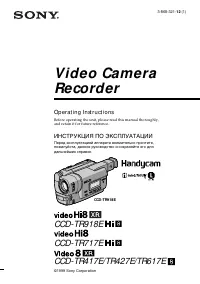 Sony CCD-TR617E
Инструкция по эксплуатации
Sony CCD-TR617E
Инструкция по эксплуатации
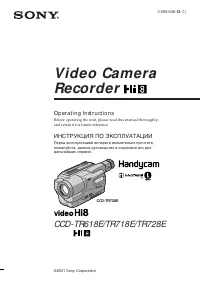 Sony CCD-TR618E
Инструкция по эксплуатации
Sony CCD-TR618E
Инструкция по эксплуатации