
Asus RT-AXE7800 - Инструкция по эксплуатации
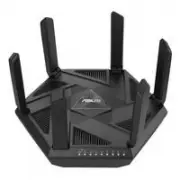
Роутер Asus RT-AXE7800 - инструкция пользователя по применению, эксплуатации и установке на русском языке. Мы надеемся, она поможет вам решить возникшие у вас вопросы при эксплуатации техники.
Если остались дополнительные вопросы — свяжитесь с нами через контактную форму.


RT-AXE7800
Wireless-AXE7800 Tri-band Gigabit Router
Quick
Start Guide
Hardware Explanations
I/O Ports Overview
LED Lights Overview
1G Port WAN Type Setup Steps
Prepare your Router
01
Connect the modem to the WAN port (1G WAN/LAN1) with a
network cable.
DC Power adapter
DC Output: +12V with 3.0A current
Operating Temperature
0~40
o
C
Storage
0~70
o
C
Operating Humidity
50~90%
Storage
20~90%
Specifications:
Prepare your Modem
01
1
Unplug the power of cable / DSL modem. If it
has a battery backup, remove the battery.
5
[App]
Launch
ASUS Router App
and follow the
instructions to complete the setup.
Modem back
Unplug
Install your Router
02
1
Plug the adapter into the DCIN port, and press the Power switch.
2
Connect your modem to WAN port at the back side of the router with the
network cable provided. The WAN port is set as 2.5G by default.
3
Power on the modem. Plug modem to the power
outlet and power on.
Modem back
4
Check the modem LED lights to ensure the connection is active.
If you are using DSL for internet,
you will need your username
/ password from your Internet
service provider (ISP) to properly
configure your router.
Modem front
– Or via web browser
3
[Wired]
Connect your PC to LAN port at the
back side of the router using an additional
network cable.
[Wireless]
Connect to the network with default
SSID shown on the product label on the back side
of your router “ASUS_XX”.
Login and Connect
– Setting to 1G WAN under factory default settings
02
1
[ASUS Setup Wizard]
Select “manual setting”.
2
[ASUS Setup Wizard]
Select “1G Ethernet”, then follow the instructions to
complete the setup of SSID and login information.
4
[Wired / Wireless]
Open a web browser.
You will be redirected to the ASUS Setup Wizard. If not, navigate to
http://www.asusrouter.com.
Follow the instructions to complete
the setup.
– Via app
3
[App]
On your iOS or Android mobile device, go
to the app store, search for
ASUS Router
, and
download the app.
4
[App]
On your iOS or Android mobile device, tap
Settings > Wi-Fi
, connect
to the default network SSID shown on the product label on the back side of
the router. Or scan the QR code on the product label to connect the default
network SSID.
*
XX
refers to the last two digits
of MAC address. You can find it
on the label on the back of your
router.
_
LAN
1G WAN/LAN1
2.5G WAN/LAN1
5GHz
2.4GHz
POWER
2
The power LED will light up when the hardware is ready.
DCIN port
LAN ports 2-4
1G WAN/LAN1 port
2.5G WAN/LAN1 port
USB 3.2 Gen 1 port
6GHz
*
Please connect your PC to either LAN2, LAN3 or LAN 4
port.
Router
Setup
Steps
http://www.asusrouter.com/
"Загрузка инструкции" означает, что нужно подождать пока файл загрузится и можно будет его читать онлайн. Некоторые инструкции очень большие и время их появления зависит от вашей скорости интернета.
Была ли эта инструкция полезной?
Об этой инструкции
- Бренд
- Asus
- Модель
- RT-AXE7800
- Тип документа
- Инструкция по эксплуатации
- Категория
- Роутер
- Язык(и)
- Русский
- Страницы
- 2
- Размер файла
- 971,3 KB
- Формат
Задать вопрос
Похожие инструкции
Популярные роутеры Asus

Ещё модели: роутеры Asus
 Asus RT-AX86U Pro Инструкция по эксплуатации
 Asus RT-AX88U Инструкция по эксплуатации
 Asus RT-AX88U Pro Инструкция по эксплуатации
 Asus RT-AX89X AX6000 Инструкция по эксплуатации
 Asus RT-AX92U AX6100 Инструкция по эксплуатации
 Asus RT-AX1800U Инструкция по эксплуатации
 Asus RT-G32 Инструкция по эксплуатации
 Asus RT-N11P Инструкция по эксплуатации
 Asus RT-N11P B1 Инструкция по эксплуатации
 Asus RT-N12 B1 Инструкция по эксплуатации
 Asus RT-N12 VP B1 Инструкция по эксплуатации
 Asus RT-N12E Инструкция по эксплуатации
 Asus RT-N12HP Инструкция по эксплуатации
 Asus RT-N13U Инструкция по эксплуатации
 Asus RT-N18U Инструкция по эксплуатации
 Asus RT-N19 Инструкция по эксплуатации
 Asus RT-N56U B1 Инструкция по эксплуатации
 Asus RT-N300 Инструкция по эксплуатации
 Asus TUF-AX3000 V2 Инструкция по эксплуатации